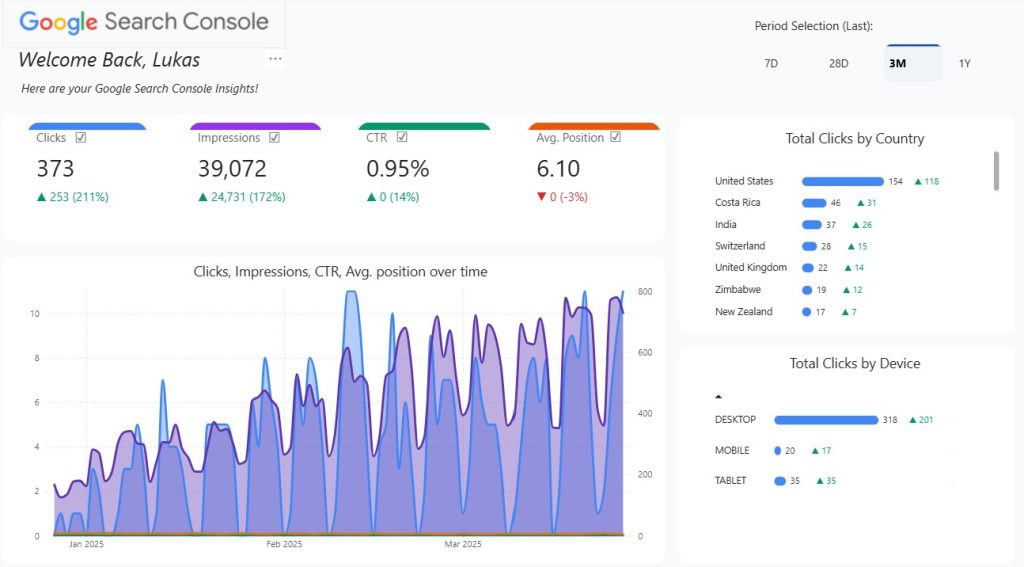
Google Search Console Power BI Dashboard: Complete Guide

Google Search Console Power BI: Build an Interactive SEO Dashboard
- Fully interactive Google Search Console dashboard built with dynamic SWITCH-driven KPIs and cross-filtering logic.
- Custom SVG rounded bar charts that adapt their color, shape, and values based on the selected KPI.
- Smart dynamic titles, labels, and period selectors that update instantly as users switch metrics or date ranges.
- Invisible-slicer technique enabling KPI-to-visual interactions not possible with standard Power BI cards.
- Option to connect real GSC data via Windsor.ai for a production-ready analytics workflow.
📑 Table of Contents
- Why Google Search Console Power BI Beats Native Analytics
- The Challenge: Cross-Filtering in Power BI KPI Cards
- Building Your Search Console Analytics Dashboard
- Technical Architecture & DAX Measures
- How Interaction Flow Works
- Connect Real Data: GSC to Power BI
- Portfolio Value & Business Impact
- FAQ: Implementation Guide
- Download & Experience
- Next Steps: Extend Your Analytics
If you’re a digital marketer, SEO professional, or data analyst, Google Search Console is likely your daily companion. Yet despite its power, the native interface has limitations: fixed metrics, restricted customization, and no cross-source integration. This article reveals how to build a dynamic Google Search Console Power BI dashboard that not only replicates GSC functionality but exceeds it. Discover how 44 strategically organized Power BI DAX measures, an invisible slicer workaround, and SVG-generated visuals transform your website traffic Power BI into a production-grade analytics platform. This is a fictional dummy dataset which relies on the format that you will get from the windsor API connection. Whether you’re enhancing your marketing metrics Power BI portfolio or building real analytics infrastructure via Windsor.ai data integration, this comprehensive guide covers every step.
Why Google Search Console Power BI Beats Native Analytics
To understand the value of a Google Search Console Power BI solution, consider what native GSC lacks. First, GSC offers limited custom metrics—you’re confined to clicks, impressions, CTR, and position. Moreover, the interface doesn’t support true cross-source analytics. When you need to correlate GSC data with Google Ads spend, website traffic from Analytics, or CRM conversions, you’re trapped in manual exports and spreadsheets.
Furthermore, Power BI enables features GSC simply doesn’t provide: dynamic period comparisons, custom visualizations, role-based filtering, and real-time dashboards. Additionally, marketers can embed Power BI dashboards on their websites or share via Power BI Service to stakeholders worldwide.
- Custom Metrics: Blend GSC with Ads, Analytics, CRM data
- Advanced Formatting: Conditional colors, SVG visuals, dynamic titles
- Period Flexibility: Compare any date ranges (7D, 28D, 3M, 1Y, custom)
- Real-Time Refresh: Automated schedules via Power BI Service
- Embeddable & Shareable: Publish to web, email, or stakeholder portals
The result: a search traffic dashboard that drives faster insights and better decisions—exactly what modern marketing teams demand.
The Challenge: Cross-Filtering Limitations in Power BI KPI Cards
Here’s the core problem: When you build a standard Power BI dashboard with KPI cards, clicking on a card doesn’t filter other visuals. This is a fundamental limitation of Power BI’s native card visual. Instead of native filtering, users must click external slicers, which feels clunky and unintuitive compared to the seamless Google Search Console experience.
Consequently, most Power BI dashboards sacrifice interactivity for usability. However, this Google Search Console Power BI project solves this through an innovative workaround: the invisible button slicer.
| Scenario | Native Power BI (Without Workaround) | Google Search Console Power BI (With Invisible Slicer) |
|---|---|---|
| Click KPI Card | ❌ No filtering occurs | ✅ Invisible slicer activates, all visuals update |
| Visual Feedback | ❌ No indication of selection | ✅ Checkmarks, color highlights, accent bars show selection state |
| User Experience | ❌ Requires external slicers (poor UX) | ✅ Matches native GSC interface (intuitive) |
| Custom Visuals | ❌ Limited to built-in charts | ✅ SVG-generated bars with dynamic formatting |
The invisible slicer remains hidden from end users while receiving interaction signals from visual elements. Thus, all cross-filtering happens seamlessly behind the scenes—exactly as Google Search Console behaves.
Building Your Search Console Analytics Power BI Dashboard
Now, let’s explore what your website traffic Power BI dashboard includes. The interface is built around four interconnected components: KPI cards, dynamic visuals, period selection, and geographic/device breakdowns.
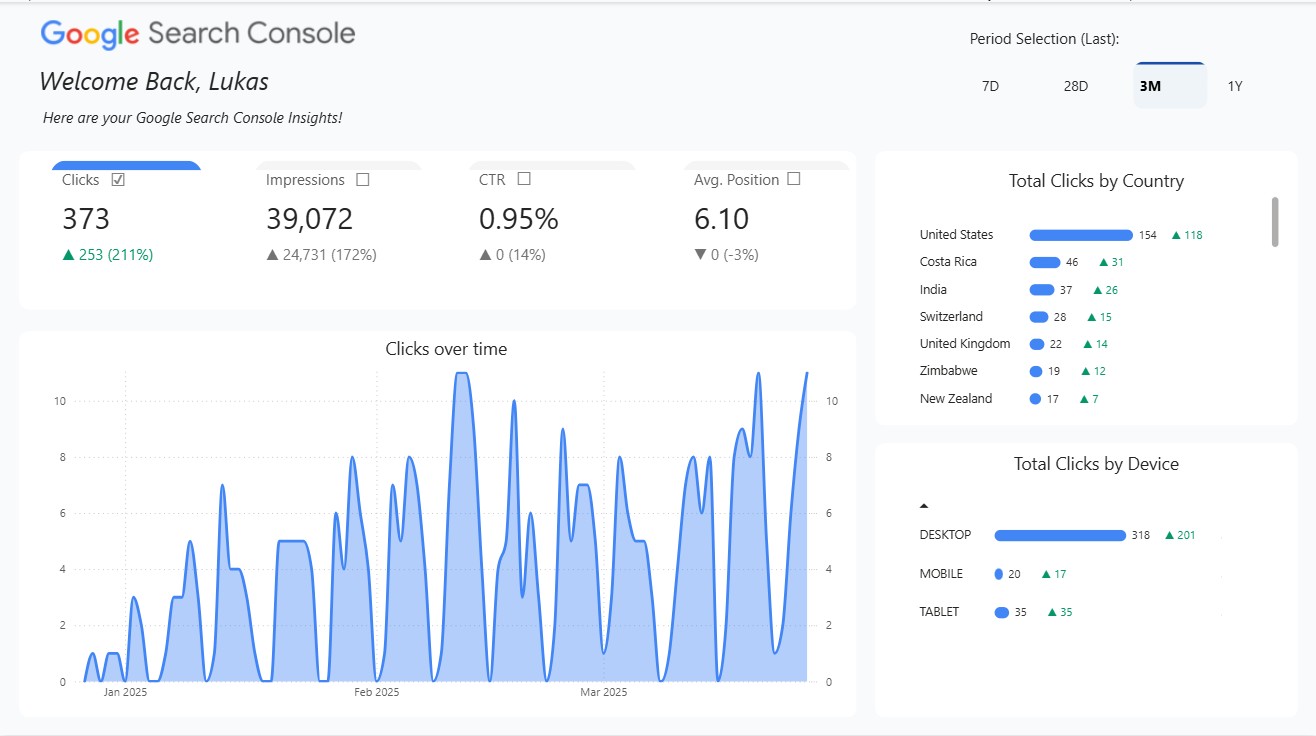
🎯 Four Dynamic KPI Cards
Each of the four KPI cards represents a critical GSC metric. Therefore, understanding their structure is essential:
- Total Clicks: Organic clicks from search results (plus previous period delta)
- Total Impressions: Search impressions before click (with trend indicator)
- Average CTR: Click-through rate (formatted as percentage with delta)
- Average Position: Average ranking position (decimal format, lower = better)
Subsequently, each card displays:
- Current period value (formatted dynamically)
- Previous period comparison with color-coded indicator (green ↑ up, red ↓ down)
- Percentage and absolute change metrics
- Checkbox indicator showing selection state (✓ if selected, blank if not)
- Accent bar that changes color based on active KPI
📊 Dynamic Visual Filtering in GSC Power BI
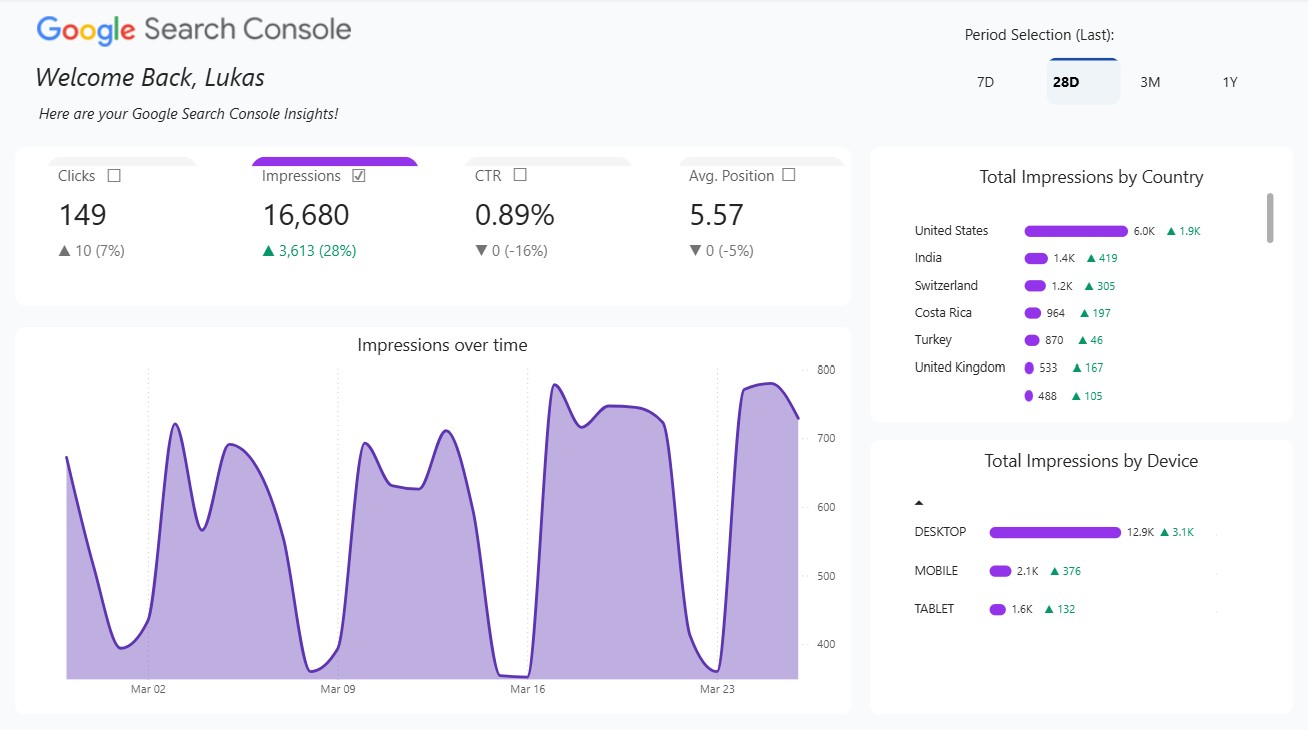
When you click on any KPI card in this interactive Power BI dashboard, a cascade of updates occurs. Specifically, the invisible slicer filters the KPI Selector table, triggering recalculation of all 44 dependent measures.
As a result, the following changes happen instantly:
- ✅ Selected KPI is highlighted with a checkmark
- 🎨 All visuals update with the KPI’s designated color theme
- 📈 Time series chart shows metrics for the selected KPI only
- 🌍 Country breakdown refreshes with KPI-specific data
- 📱 Device performance chart updates in real-time
🎨 Color-Coded Metrics with Power BI Conditional Formatting
Color consistency is critical in Power BI KPI dashboards because it reduces cognitive load. Therefore, each metric has a fixed color that cascades throughout:
- Blue (#4285F4): Total Clicks (Google brand primary)
- Purple (#9333EA): Total Impressions (distinct secondary)
- Green (#059669): Average CTR (success indicator)
- Orange (#EA580C): Average Position (warning/attention)
Moreover, delta indicators use conditional logic: improvement = green (#059669), decline = red (#DC2626), no change = gray (#737373). This intuitive scheme is replicated across all titles, bars, and conditional formatting rules.
📅 Flexible Period Selection (Disconnected Table Architecture)
Traditional Power BI date filtering can disrupt relationships. Conversely, a disconnected date table solves this by remaining independent from fact tables. As a result, you can select any period without breaking dimension relationships.
This dashboard offers four preset periods:
- 7D (Last 7 days)
- 28D (Last 28 days) — Default
- 3M (Last 3 months)
- 1Y (Last year)
Furthermore, the disconnected table uses SWITCH statements to map period selections to corresponding date ranges. Therefore, users can change periods without affecting KPI selections or other filters.
📊 Advanced Visualization: SVG Bar Charts & Time Series
Unlike standard bar charts, this website traffic Power BI dashboard generates custom SVG-based visuals. Consequently, you get:
- Dynamic Bar Width: Proportional to current period values
- Formatted Values: Thousands abbreviated (1,234 → 1.2K), percentages formatted
- Delta Comparisons: Period-over-period change displayed inline
- Color-Coded Indicators: Green for up, red for down, based on delta calculations
Example output: 445 K ▲ 114 (445K clicks in current period, +114 vs. previous)
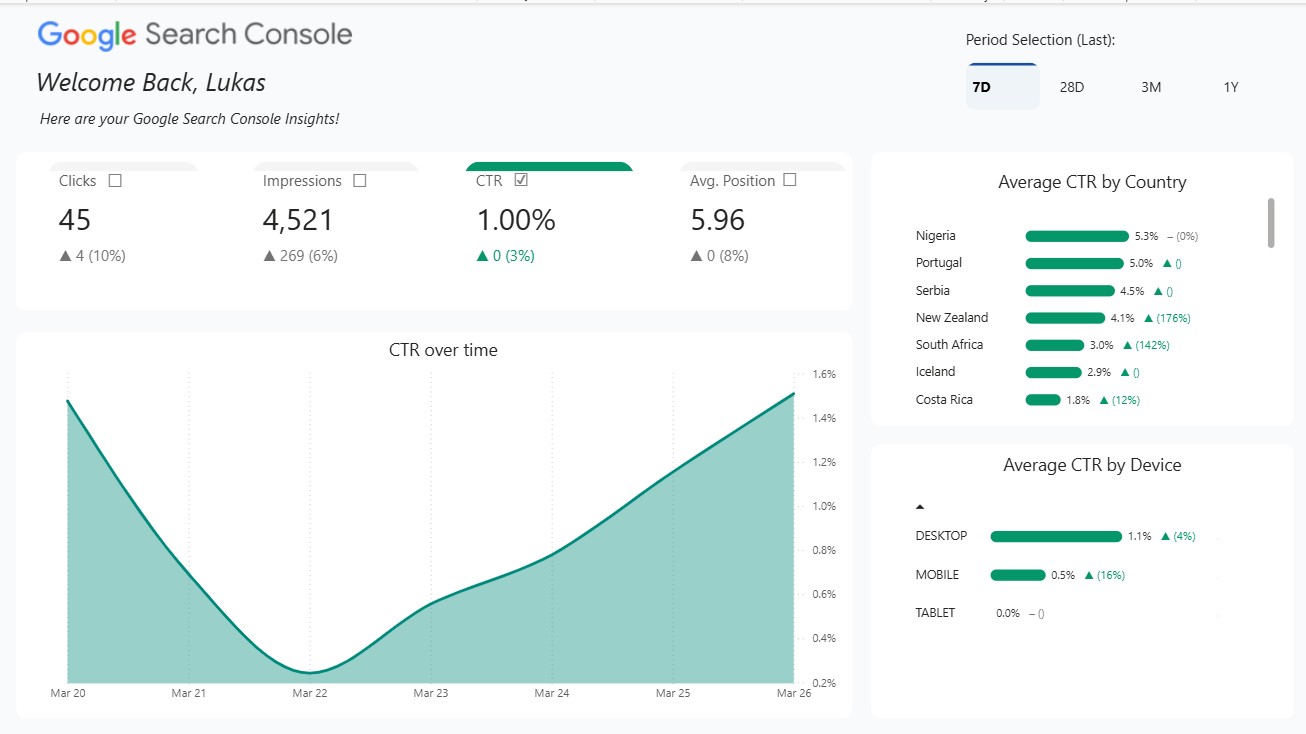
Additionally, the time series area chart displays all metrics over time with multi-axis support. Hence, you can visualize clicks and impressions (large scale) alongside CTR and position (small scale) on the same chart without distortion.
Technical Architecture: Power BI Data Model & DAX Measures
The power of this Google Search Console Power BI solution lies beneath the surface. Specifically, the data model and 44 strategic Power BI DAX measures orchestrate all interactivity. Therefore, understanding this architecture is key to mastering the dashboard.
Data Model Structure for Search Console Analytics
This Power BI data model design consists of six interconnected tables:
| Table Name | Purpose | Key Columns |
|---|---|---|
| Fact_GSC | Raw Search Console data | Date, Country, Device, Clicks, Impressions, CTR, Position |
| Dim_Date | Date dimension for time series | Date, Month, Quarter, Year, Week |
| KPI Selector | KPI selection control table | KPI, Sort Order, KPI Short |
| Dim_Date_Selection | Disconnected period table | Date Selection, Index, Short (7D, 28D, 3M, 1Y) |
| Fact_GSC_KPIs | Pre-aggregated KPI metrics | Period, KPI, Current Value, Previous Value |
| LegendIcons | Visual legend & icons | Icon Type, Color Code, Label |
The architecture uses a star schema with two fact tables (Fact_GSC for raw data, Fact_GSC_KPIs for aggregates) connected to four dimension tables. Hence, the model supports both granular drill-down and high-level summaries without redundancy.
The Invisible Slicer Workaround: Enabling Power BI Cross-Filtering
Here’s where this interactive Power BI dashboard diverges from standard dashboards. The invisible slicer is a button slicer linked to the KPI Selector table, positioned off-canvas or rendered transparent.
When you click a KPI card element, a buried interaction rule triggers the slicer. Subsequently, the slicer filters KPI Selector[KPI] to the selected metric. Immediately afterward, all dependent measures recalculate, updating visuals instantaneously. This is the secret to Power BI cross-filtering without native support.
- Independence: The slicer doesn’t depend on fact table relationships
- Filter Propagation: It filters the control table, which all measures reference
- Real-Time Recalc: Measures update instantly based on KPI Selector filter state
- Invisible to Users: No slicer UI shown; interaction appears native to KPI cards
- Scalable: Works with any number of dependent visuals
44 Dynamic Measures for Website Traffic Power BI
The dashboard’s interactivity relies on 44 measures organized into 10+ logical categories. Therefore, let’s examine the most critical ones:
Category 1: Current & Previous Period Calculations
These base measures calculate raw values for the selected period and the comparison period:
Total Clicks - Current Period
Total Impressions - Current Period
Average CTR - Current Period
Average Position - Current Period
(+ corresponding Previous Period variants)
Subsequently, all higher-level measures depend on these calculations. Hence, they must be optimized for performance.
Category 2: Intelligent Number Formatting with DAX SWITCH
The measure Selected KPI Value Current Period (Formatted) applies context-aware formatting. Specifically, it uses a SWITCH statement to determine the appropriate format based on the selected KPI:
SWITCH(SelectedKPI,
    "Total Clicks", IF(ABS(RawValue) > 1000,
        FORMAT(RawValue / 1000, "0.0") & "K",
        FORMAT(RawValue, "#,0")),
    "Total Impressions", IF(ABS(RawValue) > 1000,
        FORMAT(RawValue / 1000, "0.0") & "K",
        FORMAT(RawValue, "#,0")),
    "Average CTR", FORMAT(RawValue, "0.0%"),
    "Average Position", FORMAT(RawValue, "0.0"),
    BLANK()
)
Therefore, clicks and impressions show as “1.2K”, CTR as “1.32%”, and position as “18.57”—each optimized for readability.
Category 3: Dynamic Color Assignment & Conditional Logic
The KPI Card BG Color measure returns the active KPI’s color:
SWITCH(Selected,
    "Total Clicks", "#4285F4",        // Blue
    "Total Impressions", "#9333EA",   // Purple
    "Average CTR", "#059669",         // Green
    "Average Position", "#EA580C",    // Orange
    "#F5F5F5" // Default gray
)
Furthermore, delta color logic uses IF statements:
IF(CurrentValue > PreviousValue,
    "#059669",    // green (improvement)
    IF(CurrentValue < PreviousValue,
        "#DC2626",    // red (decline)
        "#737373"     // gray (no change)
    )
)
As a result, colors propagate through conditional formatting rules, titles, and charts automatically.
Category 4: SVG Image Generation in DAX
Perhaps the most innovative measure is KPI Bar SVG Country, which generates inline SVG code. Specifically, it combines:
- Dynamic bar width (proportional to data)
- Formatted value text
- Color-coded delta indicator
- Responsive scaling
As a result, custom bar charts appear without external visual imports—entirely from DAX string concatenation.
Category 5: Selection State Indicators & Checkboxes
Four measures display checkmarks for the selected KPI:
Total Clicks Checkbox Icon: IF([IsSelectedKPI] = 1, "✓", "")
Total Impressions Checkbox Icon: IF([IsSelectedKPI] = 1, "✓", "")
Average CTR Checkbox Icon: IF([IsSelectedKPI] = 1, "✓", "")
Average Position Checkbox Icon: IF([IsSelectedKPI] = 1, "✓", "")
Hence, users see visual confirmation of which KPI is active.
How Interaction Flow Works in Your GSC Power BI Dashboard
Understanding the step-by-step interaction flow reveals why this Google Search Console Power BI dashboard feels so responsive. Therefore, let's trace a user's journey:
Step 1: User Clicks a KPI Card
User sees "Total Clicks: 1,498" on a blue KPI card and clicks it.
Step 2: Invisible Slicer Receives Signal
The hidden button slicer detects the interaction and filters KPI Selector table to "Total Clicks".
Step 3: Cascade of Measure Recalculations
All 44 measures respond to the filter change:
IsSelectedKPI= 1 (for Total Clicks)KPI Card BG Color= "#4285F4" (Blue)Selected KPI Value Current Period= 1,498Selected KPI Value Current Period (Formatted)= "1.5K"- All checkbox icons recalculate (checkmark appears on Clicks only)
Step 4: Visual Refresh (Milliseconds)
All visuals update instantaneously:
- KPI card title bar turns blue
- Accent bar highlights in blue
- Time series chart title becomes "Total Clicks over Time"
- Country breakdown shows clicks-specific data
- Device chart displays device-specific clicks
- SVG bars regenerate with new color and values
Step 5: User Changes Time Period
User clicks "3M" for a 3-month view.
Step 6: Period Measures Recalculate
The disconnected Dim_Date_Selection table updates:
- New date range applies (e.g., last 90 days)
- Current and Previous period measures recalculate
- Delta values update
- SVG bar charts regenerate with new data
- All visuals refresh within 1–2 seconds
Connect Real Data: Google Search Console to Power BI via Windsor.ai
The dashboard you've seen so far uses dummy data for demonstration. However, transforming it into a production-grade search traffic dashboard requires real Google Search Console data. Therefore, the recommended path is Windsor.ai integration.
What Is Windsor.ai?
Windsor.ai is a connector platform that pulls data from 500+ marketing sources directly into Power BI. Specifically, it supports Google Search Console as a native data source. Therefore, you can establish a live connection without complex APIs.
Data Sources Available via Windsor.ai
Beyond GSC, Windsor.ai integrates with:
- ✅ Google Search Console (primary source)
- ✅ Google Analytics 4 (traffic, users, conversions)
- ✅ Google Ads (spend, impressions, clicks)
- ✅ Facebook Ads (campaign performance)
- ✅ LinkedIn Ads (B2B targeting)
- ✅ Hundreds of other platforms (Mailchimp, HubSpot, Shopify, etc.)
As a result, you can build a unified marketing metrics Power BI dashboard combining search, paid, and conversion data in one view.
Setup Steps for Real Data Integration
To connect your actual Google Search Console to this website traffic Power BI dashboard, follow these steps:
- Sign up for Windsor.ai (free tier available)
- Connect Google account via OAuth (they access your GSC account)
- Select properties you want to sync (domain, app, URL prefix)
- Choose refresh schedule (daily, weekly, or on-demand)
- Extract data to Power BI via Power Query
- Replace dummy data with real GSC tables
- Refresh the dashboard and monitor live metrics
Once connected, your Google Search Console Power BI dashboard will reflect real-time data. Furthermore, you can schedule automatic refreshes to keep metrics current without manual intervention.
Portfolio Value: Why This Power BI Project Stands Out
Beyond functionality, this Google Search Console Power BI project demonstrates advanced technical and business acumen. Therefore, it's a powerful portfolio piece for job seekers and consultants alike.
🎓 Technical Excellence
- Advanced DAX: 44 measures organized logically (vs. 5–10 in typical dashboards)
- Innovative Workaround: Invisible slicer solves a fundamental Power BI limitation
- SVG Mastery: Generates custom visuals from pure DAX (no external libraries)
- Responsive Design: Adapts to any screen size or data scale
- Performance Optimized: Efficient measure calculations and filter propagation
📊 Real-World Application
- Demonstrates problem-solving: Cross-filtering limitation → invisible slicer solution
- Shows business sense: Custom metrics drive faster insights than native GSC
- Proves production readiness: Works with real data via Windsor.ai integration
- Provides tangible value: Solves actual pain points in marketing analytics
🚀 Scalability & Extensibility
- Model extends to other GSC metrics (queries by device, search type, etc.)
- Architecture supports multiple KPI variations without redesign
- Disconnected tables enable flexible period comparisons
- Can integrate hundreds of other data sources via Windsor.ai
- Methodology replicates across different domains (sales, operations, finance)
💼 Business Impact
- Reduces reliance on external tools (less vendor lock-in)
- Accelerates insight generation (one-click filtering vs. manual segmentation)
- Enables custom KPIs unavailable in native GSC
- Facilitates cross-source analytics (GSC + Ads + Analytics in one view)
- Supports stakeholder sharing (embedded reports, Power BI Service)
FAQ: Google Search Console Power BI Implementation Guide
Below are answers to the most common questions about building and deploying this interactive Power BI dashboard for search traffic analytics.
Q1: Can Power BI Replace My Native Google Search Console?
No, but Power BI complements GSC excellently. GSC remains the authoritative source and API. Power BI enhances by offering custom metrics, cross-source integration, advanced visuals, and stakeholder-friendly dashboards. Therefore, view Power BI as an analytics layer on top of GSC, not a replacement.
Q2: How Do I Connect Real Google Search Console Data to Power BI?
Use Windsor.ai connector (recommended): Sign up, authenticate your Google account, select GSC properties, and sync to Power BI via Power Query. Alternatively, you can use Google's official API with Power Query M language, but Windsor.ai simplifies the process. Setup takes ~15 minutes.
Q3: What's the Easiest Way to Create Period-Over-Period Comparisons?
Use a disconnected date table (like Dim_Date_Selection) mapped to SWITCH statements. This keeps your date dimension relationship-free and allows flexible period selection without breaking data model integrity. The pattern is reusable across any analytics domain.
Q4: How Does the Invisible Slicer Enable Power BI Cross-Filtering?
The invisible slicer is a button slicer linked to a control table (KPI Selector). When hidden, it doesn't display UI but still receives interaction signals. When you click a KPI card, a buried interaction rule triggers the slicer, which filters the control table. All downstream measures reference this table, so they recalculate instantly. Result: seamless cross-filtering.
Q5: How Often Should I Refresh Google Search Console Data?
GSC data typically updates 24–48 hours post-event. Therefore, daily or every-2-hours refresh schedules work well. Via Windsor.ai, you can set automatic refreshes in Power BI Service (free tier: 8x daily, Premium: unlimited). For real-time dashboards, schedule refreshes every 4–6 hours to balance freshness and API quota.
Key Technical Highlights for Your Google Search Console Power BI
| Feature | Implementation | Business Impact |
|---|---|---|
| Dynamic KPI Filtering | Invisible button slicer | One-click cross-filter of all visuals (like native GSC) |
| Color Cascading | 4 KPI colors + conditional formatting rules | Intuitive visual themes matching selected metric |
| Smart Number Formatting | Context-aware SWITCH DAX measures | Professional, readable numbers (1.2K, 1.32%, 18.57) |
| Period Flexibility | Disconnected date table + SWITCH logic | Compare any periods (7D, 28D, 3M, 1Y) without breaking model |
| Custom Bar Charts | DAX-generated SVG images with inline code | Proportional bars with formatted values and delta indicators |
| Selection State Feedback | Checkbox icons (✓) + accent bar colors | Clear visual confirmation of active KPI |
| Instant Visual Updates | Optimized measure dependency chain | Real-time responsiveness (no lag or performance issues) |
| Dynamic Titles | String concatenation measures | Self-documenting charts ("Total Clicks over Time", etc.) |
Download & Experience Your Dashboard
Now that you understand the architecture of this Google Search Console Power BI solution, it's time to explore it hands-on. Therefore, two options are available:
📥 Download the Power BI File
Get the complete Power BI Desktop file (.pbix) with all data models, 44 measures, and visual configurations. This is the ideal starting point for learning or customization.
📥 Download Google Search Console Power BI FileNote: By downloading, your email is collected and you may receive occasional updates or new templates. You can unsubscribe anytime. File includes dummy data. Replace with real GSC data via Windsor.ai to deploy to production.
🎮 Try the Interactive Dashboard Live
Below is an embedded version of the dashboard where you can interact with all features directly in your browser. Click on the KPI cards, change time periods, and observe how the entire website traffic Power BI responds in real-time.
🔽 Embedded Interactive Dashboard
Click KPI cards to filter • Change period buttons to update dates • Observe real-time visual updates
Key Takeaways: Why This Matters
As you prepare to build or deploy your own Google Search Console Power BI dashboard, keep these principles in mind:
- ✨ Power BI can rival native tools when you combine advanced DAX, creative architecture, and strategic design.
- ✨ The invisible slicer pattern is a proven workaround for Power BI's native cross-filtering limitations.
- ✨ Well-organized measures (44 vs. 5–10) are easier to maintain, audit, and extend than monolithic calculations.
- ✨ SVG generation in DAX opens possibilities for custom visualizations without external dependencies.
- ✨ Disconnected tables provide flexibility for period selection and comparison without disrupting data relationships.
- ✨ Real data integration via Windsor.ai transforms proof-of-concepts into production-grade analytics platforms.
Next Steps: Extend Your Marketing Metrics Power BI
This search traffic dashboard is powerful as-is, but its true potential emerges when you scale it. Therefore, consider these extensions:
Short-Term Enhancements
- Connect real GSC data via Windsor.ai (1–2 hours setup)
- Add custom date filters (date picker for arbitrary ranges)
- Include search query breakdowns (top queries by clicks, impressions, CTR)
- Segment by device and country (already partially supported, expand drill-down)
Medium-Term Roadmap
- Integrate Google Ads data (cost-per-click, ROAS, ad spend by keyword)
- Blend with Google Analytics 4 (website traffic, conversions, bounce rate)
- Create cohort analysis (user segments, retention, lifetime value)
- Build anomaly detection (alerts for unusual metric spikes/drops)
Long-Term Vision: Unified Marketing Analytics Hub
Eventually, this dashboard evolves into a comprehensive marketing metrics Power BI hub combining:
- Search performance (GSC data)
- Paid advertising (Google Ads, Facebook, LinkedIn)
- Website behavior (Google Analytics 4)
- Email & conversions (HubSpot, Mailchimp, Shopify)
- CRM & sales data (Salesforce, HubSpot)
As a result, stakeholders get one unified dashboard instead of multiple disconnected tools. Hence, insights surface faster and decisions improve.
How a Sales Dashboard Can Drive Your Business Growth
Ready to Build Your Own?
Start with the free Power BI file download, explore the measure architecture, and then connect your real Google Search Console data via Windsor.ai. Transform your analytics game today. 📥 Get Started: Download the free Google Search Console PBIX file
Note: By downloading, your email is collected and you may receive occasional updates or new templates. You can unsubscribe anytime. File includes dummy data. Replace with real GSC data via Windsor.ai to deploy to production.
Questions? Explore the FAQ section above or reach out to discuss your analytics strategy.