
Power BI Dashboard Background Templates
Professional Power BI dashboard background templates built in Figma — 18 layouts, 4 sidebar types, 10 color themes including dark mode. Export as PNG, JPG, or SVG. Ready in 60 seconds, no design skills needed.
A Power BI Background Template
In 60 Seconds
Select. Export. Upload to Power BI. Done.
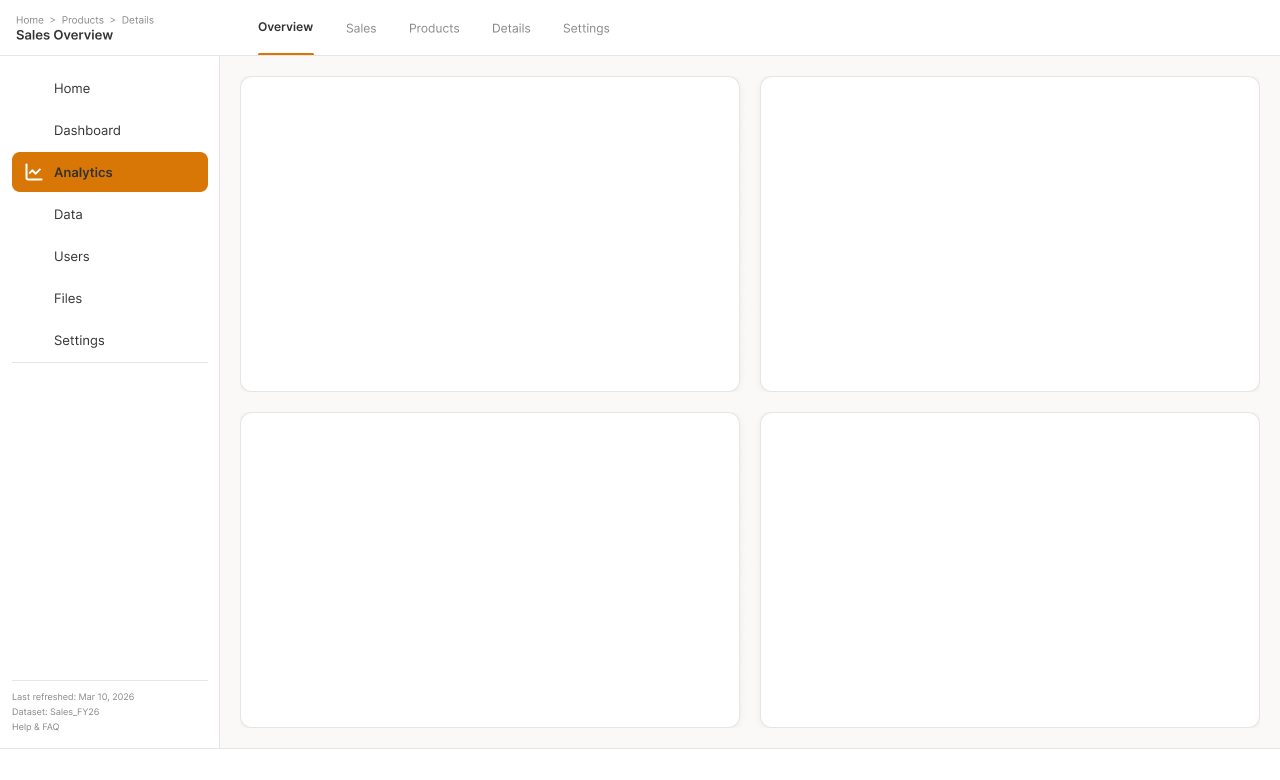

Same layout. One click to switch between light & dark.
4 Sidebar Layouts. 18 Power BI Dashboard Background Templates Each.
Pick the sidebar that fits your report. Every layout comes in all 10 color themes — switch with one click. Browse 71 wireframe layout examples if you need inspiration first.


Large Sidebar
Full nav with icons & labels · best for 5+ pages
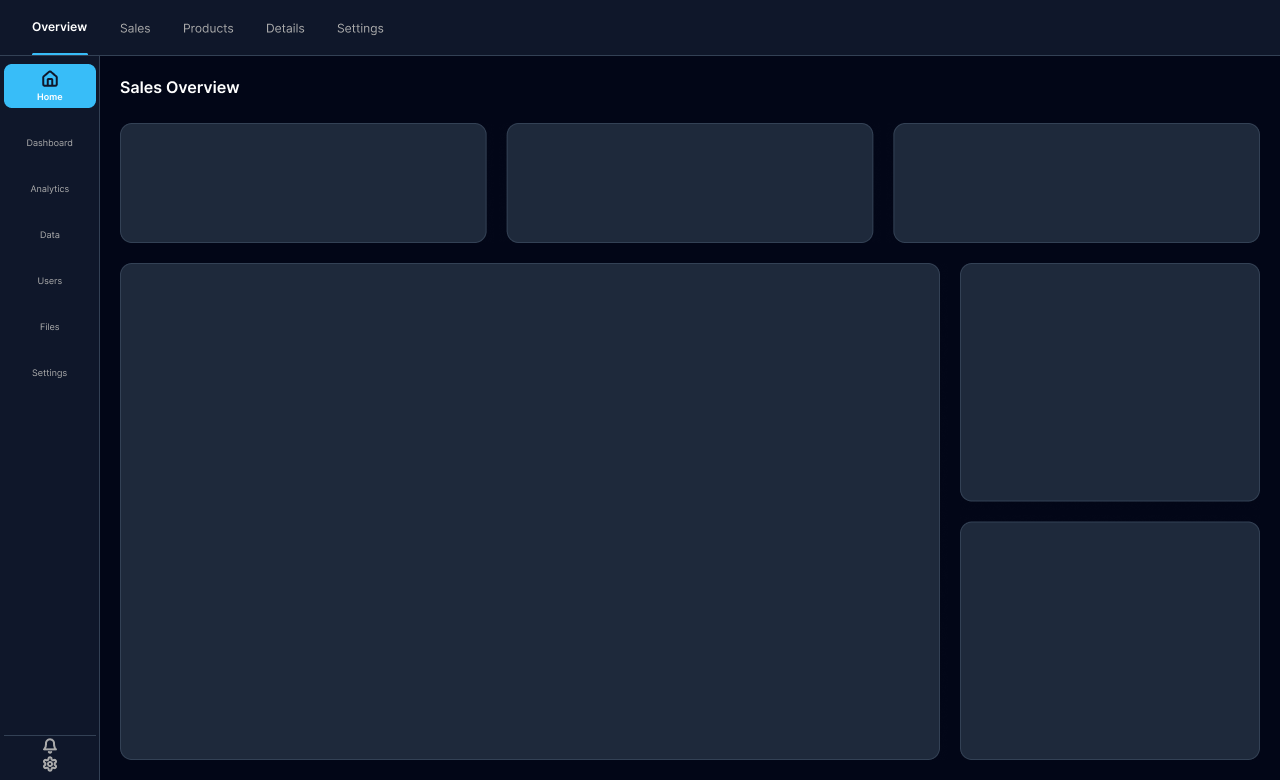


Medium Sidebar
Compact icons · balanced nav and content


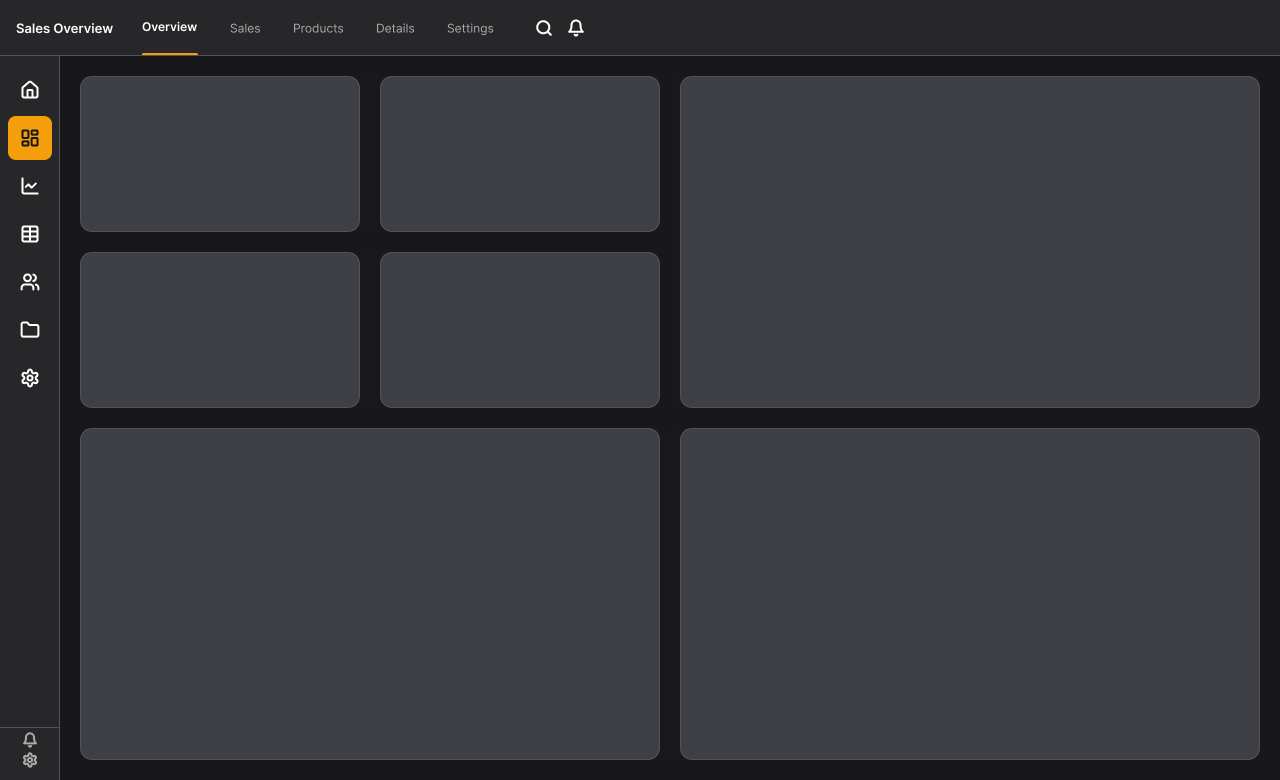
Small Icon Sidebar
Minimal icon strip · maximum content area


No Sidebar
Full-width content · clean single-page reports
10 Color Themes — Switch in One Click
Every Power BI dashboard layout works with every theme. Powered by Figma Variables — add unlimited custom themes too.
Clean White
Minimal, professional default
Warm Sand
Soft, warm tones
Cool Slate
Corporate blue-gray
Sage Forest
Earthy, balanced
Soft Lavender
Calm, approachable
Lime Fresh
Energetic, modern
Navy
Dark, bold
Charcoal
Classic dark mode
Midnight
Deep, immersive
Dark Teal
Rich, distinctive
4 Power BI Dark Mode Dashboard Themes — Included
Give your Power BI reports a professional dark look — no extra cost. All 4 dark themes work with every sidebar layout. Learn more about Power BI dark mode templates and when to use them.


Like what you see? Get access to all 72 Power BI dashboard background layouts and 10 themes — one-time purchase.
Get the Full Bundle — €149What You Get With Every Power BI Dashboard Background Template
Every template is a fully editable Figma frame with auto-layout and variable-based theming. Follow Power BI dashboard design best practices — these templates are built around them.
In my experience building Power BI reports for enterprise clients, the biggest time sink isn’t the DAX or the data model — it’s getting the layout to look polished. That’s why I built these templates around the two Figma features that make the most difference: auto-layout and Variables.
10 Color Themes
6 light + 4 dark. Switch any layout to any theme instantly via Figma Variables. Add unlimited custom themes.
Auto-Layout
Resize the frame — headers, sidebars, KPI cards all adjust automatically. No manual repositioning needed.
Fully Editable .fig File
Move, resize, delete, rename, recolor any element. Real Figma frames — not locked components or static images.
Export PNG, JPG or SVG
Export your Power BI background template as PNG (recommended), JPG, or SVG — then upload directly to the Power BI canvas.
Any Canvas Size
Designed at 1280×780. Resize to 1920×1080, 1600×900, or any dimension. Auto-layout handles the rest automatically.
Delete Segments Freely
Don’t need a footer? Delete it. Fewer KPI cards? Remove them. The dashboard layout re-flows automatically.
A Power BI dashboard background template is not a static image — it’s a full design system. Change the color theme, resize the frame, remove sections you don’t need. The background adapts. That’s what separates a Figma template from a PNG generated by a free online tool. — Lukas Reese, Power BI Consultant & Dashboard Designer
72 Power BI dashboard layouts. 10 themes. Export PNG, JPG or SVG. One-time purchase. No subscription.
Get the Full Bundle — €149Choose Your Pack
One-time purchase. Instant Figma access. No subscription. Over 350,000 organizations worldwide use Power BI (Microsoft, 2024) — these templates are built for analysts who want their reports to look the part.
Single Pack
1 sidebar variant · all 10 themes
Choose: Large, Medium, Icon, or No Sidebar
- 18 layouts in your chosen variant
- All 10 color themes (6 light + 4 dark)
- Auto-layout + Figma Variables
- Export PNG, JPG or SVG
- Dark mode themes included
- Other sidebar variants not included
Full Bundle
All 4 sidebar variants · all 10 themes
Save 46% vs. buying separately
- 72 layouts (18 × 4 sidebar variants)
- All 10 color themes (6 light + 4 dark)
- Auto-layout + Figma Variables
- Export PNG, JPG or SVG
- Dark mode themes included
- All future theme additions free
The download is a .fig file (Figma format). You need Figma to open and use the templates — the free plan is sufficient. Sign up at figma.com for free. From Figma, export your chosen background as PNG, JPG, or SVG and upload it directly to Power BI as your canvas background.
Single Pack, Bundle or Plugin — Which One Do You Need?
All templates are fully editable Figma files. The difference is how many sidebar variants you get — and whether you need to generate layouts from scratch.
| Single Pack €69 one-time |
Bundle €149 one-time |
Plugin €199 launch (first 25) |
|
|---|---|---|---|
| Sidebar variants | 1 of your choice | All 4 variants | Any / unlimited |
| Layouts included | 18 | 72 (18 × 4) | Generate any |
| Color themes | 10 (6 light + 4 dark) | 10 (6 light + 4 dark) | Fully custom |
| Switch theme in one click | ✓ | ✓ | ✓ |
| Resize to any canvas size | ✓ | ✓ | ✓ |
| Move, resize, delete elements | ✓ | ✓ | ✓ |
| Add custom brand colors | ✓ via Variables | ✓ via Variables | ✓ |
| Generate completely new layouts | ✗ | ✗ | ✓ |
The most professional Power BI dashboards aren’t designed in Power BI — the visual structure is built in Figma first. A proper Figma power bi template lets you iterate on the layout without touching the report itself. — Lukas Reese, Insight Driven
How to Use a Power BI Dashboard Background Template
1. Purchase and download the .fig file from LemonSqueezy
2. Open the file in Figma and select a dashboard layout frame
3. Switch the variable mode to your preferred color theme
4. Resize the frame to match your Power BI canvas size (e.g. 1280×720 or 1920×1080)
5. Export as PNG, JPG, or SVG at 1× scale
6. In Power BI: View → Canvas background → Image → Upload. Set Image Fit to “Fit” and transparency to 0%. Place your visuals on top.
Need help with the last step? Read the full guide: how to add a background image in Power BI. For size recommendations, see the Power BI canvas size guide.
After applying this workflow across 30+ Power BI reports, the most common mistake I see is setting Image Fit to “Fill” instead of “Fit” — this stretches the background and misaligns the KPI zones. Always use Fit.
Frequently Asked Questions
Common questions about Power BI dashboard background templates, Figma, and the download formats.
How do I add a background image to a Power BI dashboard?
What size should a Power BI canvas background be?
Can I use a Figma template as a Power BI background?
What is the difference between a PNG background and a Figma template?
Do the templates include Power BI dark mode dashboards?
How long does it take to apply a Power BI background template?
Ready to make your Power BI dashboards look professional? 72 layouts, 10 themes, instant download.
Get the Full Bundle — €149Need more flexibility? Get the Figma plugin and make as many designs as you want.
The Background Designer Figma plugin generates pixel-perfect Power BI dashboard backgrounds from five settings — grid, navigation, KPIs, style, color. Unlimited combinations, all in 60 seconds. Explore four ways to create Power BI backgrounds to see how the plugin compares to templates. Special launch deal: first 25 buyers pay €199 (regular €249).
First 25 customers · then €249
Lukas Reese — Power BI Consultant & Dashboard Designer
I’ve spent the last 5+ years designing Power BI dashboards for enterprise clients across finance, manufacturing, and retail. These templates are a direct product of that work — built to solve the exact layout and branding challenges I encountered in production reports. I consult on Power BI design, DAX modeling, and data storytelling through Insight Driven. Connect on LinkedIn →