

A Power BI dark mode template is the fastest starting point for professional dark mode dashboard design in Power BI — but most developers hit the same wall first: the application’s built-in dark mode changes the interface, not the report. Enabling it in Power BI Desktop still leaves your canvas white and your visuals light-themed. Building a real dark report requires a proper Power BI dark background color, elevated card surfaces, and a documented layout system applied consistently across all report pages.
This guide breaks down exactly what Power BI dark mode templates are, which dark color presets produce the best results, and how to apply them across real report layouts. Additionally, I’ll show you ready-made Figma dark mode templates you can download and start using immediately — no design setup required.
From template to finished page, built with AI
My free guide shows how I turn a layout into a finished Power BI page with Claude Code: 25 pages, 7 prompts you can copy, and the PBIP file.
How I Build Power BI Reports with AI
Same data, two very different pages. Both built with AI. This is the process behind the second one.
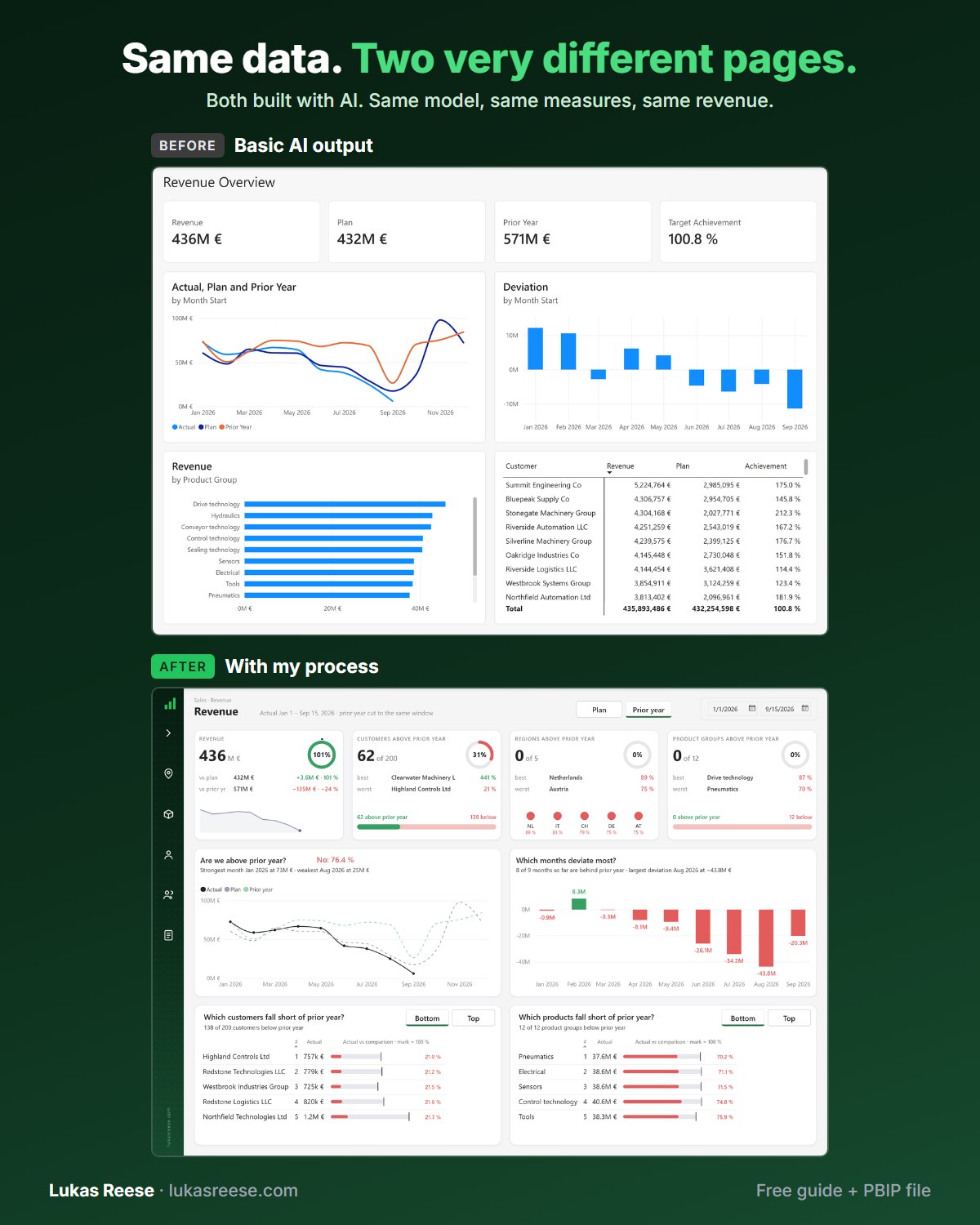
What you get:
- The 25-page guide: my full process, tool stack and 7 prompts you can copy
- The PBIP file with the same revenue page twice: the basic AI output and the finished page
- Step-by-step explanation, inspiration and real output.
Important: confirm your email
- After you sign up, you get a confirmation email. Click the button in it, then the guide and PBIP file are on their way.
- Power BI Desktop’s dark mode changes the app interface — it does not create a dark report.
- Effective dark mode dashboard design requires a proper dark background, elevated card surfaces, and controlled contrast — not just a black canvas.
- Deep gray (not pure black) is the most reliable Power BI dark background choice for readability.
- Six professional dark presets work across most dashboards: four cool-toned (Charcoal, Midnight, Dark Teal, Navy) and two warm-toned (Warm Stone, Warm Cocoa).
- Ready-made Figma dark mode templates are available to download — no design work required.
Power BI dark mode vs Power BI dark theme: what’s the actual difference?
Power BI dark mode refers specifically to the Power BI Desktop application interface — menus, side panels, and the canvas chrome. Importantly, it does not apply any dark styling to your actual report pages. As a result, switching on dark mode in Power BI Desktop still leaves your report canvas white and your visuals fully light-themed.
A Power BI dark theme, in contrast, affects the report itself. Specifically, it controls visual background fills, font colors, and chart palette defaults — applied either through a Theme JSON file or through manual formatting on each individual visual.
Power BI dark mode template: A reusable background file — typically PNG, SVG, or Figma — that establishes a dark canvas, consistent card zones, a KPI row, and a spacing grid. It provides the structural layout so developers can focus on data rather than rebuilding the design from scratch on every project.
For most teams, the practical approach is to combine both: a dark background template for layout and spacing, plus a Theme JSON file for consistent chart colors. However, starting with the background template is almost always faster — it delivers immediate visual structure without requiring deep theme customization first.
Official reference: Microsoft Power BI Desktop dark mode documentation.
Power BI dark background best practices for dark mode dashboard design
After building dark dashboards across dozens of enterprise projects, I’ve found that most dark mode dashboard design problems come down to three issues: backgrounds that are too dark (pure black), card surfaces that blend into the canvas, and accent colors that appear neon. Each of these is straightforward to fix once you have a clear system.
Six rules for a clean Power BI dark background
-
Use deep gray, not pure black. Pure black makes contrast harsh and label balancing unpredictable. Additionally, visual container shadows become invisible on pure black backgrounds.
Pure black #000000 — avoidvsDeep gray #18181B — preferred
-
Elevate card surfaces above the canvas. In practice, card backgrounds should be 5–10% lighter than the canvas color — this creates perceived depth without heavy drop shadows.
Canvas #18181B→Card #3F3F46 (clearly elevated)
- Limit accent colors to two. One primary accent plus one secondary is enough for most dashboards. Moreover, saturated colors appear more intense on dark backgrounds, so reduce saturation compared to your light mode equivalents.
- Make tables readable. In particular, dark mode tables need subtle row banding and generous cell padding — otherwise they become hard to scan at a glance.
- Test at 125% browser zoom. Reports frequently run at elevated zoom levels. Consequently, if your design only works at 100%, real users will feel the misalignment.
-
Follow contrast guidelines for text. The W3C WCAG contrast minimum of 4.5:1 is a practical baseline for body text and axis labels on dark backgrounds. In practice, use white for primary text and a muted gray for labels:
Primary text #FFFFFFMuted labels #9CA3AF

Axis labels and gridlines are typically the first elements to disappear on a Power BI dark background. In effect, if your charts look empty or flat, increase label contrast slightly and reduce gridline intensity — rather than adding heavy visual borders, which compounds the problem.
Color values that work for dark Power BI backgrounds
Based on my work across enterprise dashboards, these six dark color presets produce the most professional and readable results. Furthermore, each preset includes a matched card surface and accent color. Here’s what they actually look like — and note that the accent color is often what makes a “dark” preset feel warm or cool:
Cool dark presets
Warm dark presets
In particular, warm dark presets work well for retail, hospitality, and lifestyle dashboards — or any context where a pure “tech” aesthetic is not the goal. In particular, the amber and coffee accents read as rich rather than cold.
Top block = canvas. Middle strip = card surface. Thin bottom strip = accent color. All hex values are copy-paste ready for Power BI canvas background and visual fill settings.
All four presets are included as ready-made Figma templates — sized for Power BI, instant download.
Get templates →“In dark Power BI dashboards, the single most important decision is the canvas color. Specifically, the contrast gap between canvas and card surface — not the individual chart colors — determines whether the layout feels structured or flat.”
Power BI dark mode template spec (copy/paste)
For consistent dark dashboard templates across pages and projects, you need a documented baseline spec. Having a written spec prevents the most common problem I see in client reviews: each report page looking slightly different because spacing and colors were applied manually without a system.
Recommended values at a glance
| Template element | Recommended value | Why it helps dark dashboards |
|---|---|---|
| Canvas color |
#18181B (Charcoal)
|
Moreover, better readability than pure black |
| Card surfaces |
#3F3F46 (Charcoal preset)
|
Creates clear depth above #18181B canvas without heavy shadows |
| Primary text |
#FFFFFF
|
Accordingly, clear visual hierarchy in dark theme |
| Muted labels |
#9CA3AF
|
Axis labels, timestamps, secondary info |
| Accent colors | 1 primary + 1 secondary maximum | Consequently, prevents neon charts on dark canvas |
| Spacing tokens | 24px outer / 16px gaps / 8px inner | Similarly, pixel-perfect rhythm across all pages |
| Corner radius | 10–14px consistently throughout | Modern, unified look for dark dashboard templates |
| Header zone height | 48–56px | Provides separation without wasting canvas space |
| KPI card height | 90–110px | Specifically, enough space for value, label, and trend indicator |
Layout patterns for dark mode dashboard design in Power BI
Good dark mode dashboard design follows the natural reading pattern of its audience: KPI highlights first, then trend visuals, then breakdowns and detail. That said, the right layout structure also depends heavily on the report type. In my projects, three layout patterns cover the vast majority of dark Power BI dashboards.
For broader layout reference, the 71 Power BI wireframe examples library shows these patterns across every common report type.
Executive dark mode layout
The executive layout places a KPI row at the top — typically 4–6 metric cards — followed by 2–3 large visuals below, with a compact drill-down table at the bottom. For that reason, Midnight and Navy presets work particularly well here — those deeper color values match the professional boardroom aesthetic executive stakeholders expect.
Monitoring layout with sidebar filters
The monitoring layout uses a narrow left sidebar (180–220px wide) for filter controls, with a dominant trend visual on the right side and breakdown charts below. A slightly wider canvas — 1300×900 works well — prevents the sidebar from compressing the main content area. As a result, Charcoal and Dark Teal are strong choices for operational monitoring dashboards due to their neutral background tone.
Deep-dive layout without sidebar
For analytical or drill-through pages, use a full-width layout with clear section headers, 2–3 visuals per row, and generous row spacing. Removing the sidebar gives charts more horizontal room, and moreover, deeper spacing between section groups helps users mentally separate different analysis areas on the same page.
“The layout pattern matters more than the dark color choice. Indeed, a well-structured dark dashboard template with consistent spacing will always look more professional than a beautifully colored layout with random alignment.”
Power BI dark mode templates vs Theme JSON vs light/dark toggle
There are three main approaches to dark mode in Power BI. However, they serve different purposes and carry very different maintenance costs. Overall, most teams use a combination of a background template and a Theme JSON file — the toggle approach is powerful for end-user experience but adds significant ongoing complexity.
| Approach | Best for | Main downside |
|---|---|---|
| Dark mode templates (background PNG) | Fast, consistent layout and spacing across pages | Specifically, charts still need separate styling or a theme file |
| Power BI dark theme (Theme JSON) | Consistent chart palette and visual defaults | Requires significant iteration to match real visuals |
| Light/dark toggle | Best end-user experience with on-demand switching | High complexity and ongoing maintenance burden |
For the official Theme JSON reference, see: Power BI report themes documentation (Microsoft).
Ready-made Power BI dark mode templates — Figma download
If you want a professional dark dashboard template without building the layout from scratch, the Power BI Background Designer Figma template pack includes four dark mode presets: Charcoal (with warm amber accent), Midnight, Dark Teal, and Navy. Each template is Figma-native — you open it, select your preferred layout, and export directly to PNG for use as a Power BI background image.
The templates cover four layout types — large sidebar, medium sidebar, icon sidebar, and no sidebar — and are sized precisely to Power BI’s standard 1280×720 canvas. Additionally, each preset includes the matched card surface colors, accent color suggestions, and the spacing token system described above. In other words, the complete design system is already built when you open the file.


Power BI Dark Mode Templates — Figma Pack
4 dark presets × 4 layout types. Sized for Power BI. Open in Figma, export to PNG.
- ✓ Charcoal (amber), Midnight, Dark Teal, Navy
- ✓ Sized for 1280×720 Power BI canvas
- ✓ KPI rows, card zones & spacing tokens
- ✓ One-time purchase, instant download
Examples: dark mode dashboard design in Power BI
The examples below show what controlled contrast and consistent spacing look like in practice. Both rely on deep gray and near-black Power BI dark background colors — rather than pure black — which allows card surfaces to be visually elevated above the canvas without requiring heavy borders or drop shadows.


Five dark mode dashboard design mistakes to avoid
- Neon colors across all visuals. Saturated colors appear more intense on dark backgrounds — reduce saturation by 15–25% and reserve bright accents for highlights only.
- Invisible axis labels. Axis labels and table headers do not automatically inherit white color in Power BI, so they need explicit contrast settings on every visual. This is the most common oversight in dark mode dashboard design.
- Heavy borders and drop shadows. Rather than using thick borders around visual containers, prefer lighter card surfaces with subtle 1px strokes. Heavy shadows tend to look disconnected on dark canvases.
- Random spacing between elements. Misalignment is significantly more visible on dark dashboard templates — the dark canvas amplifies any inconsistency in padding or alignment.
- Unstyled report header. The header zone is frequently left white or default in dark dashboards, which creates an obvious disconnection from the rest of the page design. A proper Power BI dark background should extend across the full header zone.
For a broader design system checklist, see the Power BI dashboard design best practices guide and the dashboard UI design inspiration guide.
“Dark mode dashboard design is not about making things black. Indeed, it’s about creating a clear surface hierarchy — canvas, card zone, accent element — so users can focus entirely on the data rather than the interface.”
Create your own dark Power BI background with Background Designer
If you prefer to generate a custom Power BI dark background rather than using a pre-made template, the Power BI Background Designer is a web tool that builds dark mode backgrounds on demand. From there, pick a layout, select one of the dark presets (Charcoal, Midnight, Dark Teal, or Navy), and export a PNG sized precisely to Power BI’s canvas dimensions.
Want a dark mode background that doesn’t take an afternoon?
Watch the Background Designer Figma plugin build one with the right contrast, restrained accents, and Power BI-aligned grid — without the manual layout work.
The tool uses the same presets as the template pack, generating them interactively rather than as a static Figma file. It’s particularly useful when you need a non-standard canvas size or a layout not covered in the template pack — and it applies the same dark mode dashboard design principles covered in this guide.
Power BI Background Designer — Figma plugin
Generate custom dark mode Power BI backgrounds. Pick layout, choose preset, export PNG.
You can also find more layout inspiration in the Power BI background image guide, which covers canvas sizing, file formats, and image fit settings in detail.
FAQ: Power BI dark mode templates
Does Power BI dark mode automatically create a dark report?
No. Power BI dark mode only affects the Desktop application interface — menus, panels, and the canvas chrome. However, it does not apply any dark colors to your report pages. Consequently, building a dark report requires a separate dark background image, a dark Theme JSON, or both applied manually.
What is the best background color for a Power BI dark mode template?
In my experience, deep gray is consistently more versatile than pure black. Specifically, Charcoal (#18181B) and Navy (#0F172A) produce the best results across a wide range of report types. For warm-toned dashboards, Warm Stone (#1C1917) is a strong alternative — it reads as dark and professional without the cold, technical feel of pure gray.
Should I use a background template or Theme JSON for dark mode in Power BI?
In most cases, use both together. A background template handles layout, zones, and spacing — while a Theme JSON handles chart palette and visual color defaults. For a complete dark mode dashboard design system, combining both gives you full control over structure and visual styling. That said, if you only have time for one, start with the background template. It delivers immediate results and the Theme JSON can always be added later.
Why do my charts look neon in a dark Power BI dashboard?
Saturated colors appear significantly more intense against dark backgrounds. As a result, standard chart colors that look balanced in light mode become overpowering in dark mode. Specifically, reduce saturation by 15–25%, limit your palette to one primary accent plus one secondary, and use muted versions of your standard brand colors for the remaining data series.
Can I download ready-made Power BI dark mode templates?
Yes. The Power BI Background Designer template pack includes Charcoal, Midnight, Dark Teal, and Navy presets — each available across four layout types. Each template is sized to the standard 1280×720 Power BI canvas and includes card zones, KPI rows, and the spacing token system.
How do I apply a dark mode background to a Power BI report?
In Power BI Desktop, go to Format page → Canvas background → set Image to your dark background PNG file. Furthermore, set Image fit to Normal and Image transparency to 0% so the background aligns precisely to the canvas. Your visuals then sit on top of the background layer. See the Power BI background image guide for the full step-by-step process.
Dark layouts are where gradients earn their keep. For a worked example, see how the gradient carries from the sidebar into a pop up filter panel, and how to generate the background SVG for it.
Last updated: March 2026