

Building professional Power BI dashboard design best practices takes more than picking nice colors — it requires layout discipline, visual hierarchy, and a repeatable system. After delivering hundreds of Power BI implementations, I have found that the best dashboards combine proven power bi design tips with timeless dashboard design principles. Moreover, applying solid power bi layout best practices consistently produces reports that stakeholders actually use, rather than reports that get opened once and abandoned.
This guide collects 15 expert techniques drawn from real client engagements with microsoft power bi dashboard design. Specifically, it covers visual hierarchy, KPI card structure, color, typography, spacing, mobile power bi layout patterns, reusable design systems, and the power bi dashboard design principles that hold across industries. Furthermore, every tip below is grounded in either Microsoft’s official guidance, established data-visualization research, or my own production work — no hype, only patterns that move adoption metrics.
If you have ever wondered how to make power bi dashboard look good without spending days in Figma, the playbook below shows you exactly that. Specifically, these power bi design best practices work whether you are building a single executive view or rolling out a 40-page enterprise app.
Apply these layout tips with AI
My free guide shows how an AI agent builds pages that follow these rules, with a before and after: 25 pages, 7 prompts you can copy, and the PBIP file.
The 15 Power BI Dashboard Design Best Practices, at a Glance
- Master your power bi layout grid and canvas before adding visuals.
- Apply visual hierarchy — primary KPIs in the top-left Z-pattern zone.
- Limit your color palette to 3–5 colors with semantic meaning.
- Standardize typography on Inter or Segoe UI with a clear scale.
- Use the 8-point grid system for spacing and alignment.
- Architect information by decision-making workflow, not by chart type.
- Tell a visual story: context → analysis → action.
- Optimize power bi layouts for mobile with vertical stacking and 44px touch targets.
- Cap visuals at 8–12 per page to balance performance and clarity.
- Build a reusable design system for cross-report consistency.
- Structure multi-page navigation with consistent sidebars.
- Engineer KPI cards with metric, trend, target, and comparison.
- Add subtle backgrounds at 5–15% opacity for branding.
- Position filters and slicers for natural workflow scanning.
- Test, iterate, and measure adoption — design is never finished.
Quick win: If you only do three things, fix your power bi dashboard layout grid, limit colors, and add a real KPI card with target + trend. Furthermore, those three changes alone typically lift stakeholder confidence in measurable ways.
Power BI Background Designer — Figma plugin
Generate pixel-perfect Power BI dashboard backgrounds in 60 seconds inside Figma. Curated layout presets, brand color controls, exact Power BI canvas dimensions.
- Skip the manual recreation — works inside Figma
- Brand color controls and consistent layouts across reports
- Export PNG, JPG, or SVG at exact canvas dimensions
- Unlimited backgrounds — no per-export charge
Why Power BI Dashboard Design Best Practices Matter
The Business Impact of Professional Design
Professional dashboard design directly affects business outcomes. For example, organizations that consistently apply power bi dashboard design best practices report meaningfully faster decision-making and higher stakeholder confidence. Additionally, polished dashboards lift adoption rates because users return when reports feel trustworthy and easy to scan.
Stakeholders judge dashboard credibility within the first five seconds. As a result, design is not decoration — design is how decisions get made.
Quantifiable Benefits of Professional Power BI Layout Design:
- Reduce time-to-insight through clear visual hierarchy and grid alignment.
- Increase report adoption with consistent, professional power bi layouts.
- Decrease training time when dashboards follow intuitive design patterns.
- Improve stakeholder confidence in data accuracy through polished presentation.
- Enable faster business decisions with strategically placed key metrics.
The psychological impact compounds. Specifically, when executives see a thoughtfully constructed report, they trust the underlying data more. Therefore, professional design establishes credibility before a single number is read. Moreover, this is exactly why power bi design best practices deserve the same rigor as data modeling.
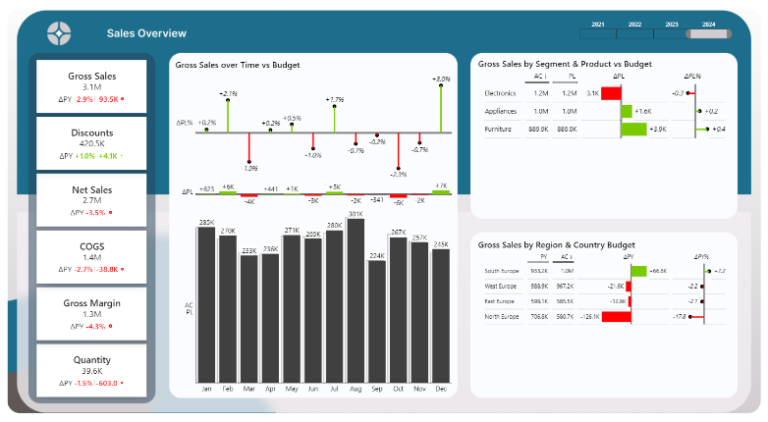
🚀 Level Up Your Career with Power BI & DataCamp
Learn Power BI, SQL, and data skills trusted by top companies. Furthermore, you can start at your own pace.
🎓 Start Learning Today & Secure Your DiscountEssential Power BI Design Tips & Layout Fundamentals
Mastering core power bi design tips creates the foundation for every successful dashboard. Specifically, when these fundamentals are applied consistently, basic reports become engaging data experiences. Moreover, the power bi layout patterns below scale from a single page to enterprise-wide design systems.
1. Master Your Power BI Layout Grid
Layout grids are the most underrated of all power bi layout best practices. Specifically, a grid gives every visual a snap-target, which prevents the misaligned, eyeball-placed look that makes amateur dashboards feel busy. Additionally, the default 1280×720 canvas often feels cramped — a slightly larger canvas gives breathing room for complex layouts.
For most desktop dashboards, a 1664×936 canvas works well because it preserves the 16:9 ratio while adding 30% more visual space. However, canvas sizing is its own topic with edge cases for 4K displays, portrait mode, and embedded scenarios. Therefore, for the full deep dive, see my Power BI canvas size guide.
Layout grid quick rule: Pick a base unit (8 px works for almost every power bi dashboard layout). Furthermore, snap every element to that grid. As a result, alignment becomes automatic and revisions go faster.
2. Apply Visual Hierarchy Principles
Visual hierarchy is the most fundamental of all dashboard design principles. Specifically, Western audiences scan in Z-patterns from top-left to bottom-right, which makes the placement of key information non-negotiable. Additionally, hierarchy uses size, color, and position together — not in isolation.

The eye lands top-left first. Therefore, that is where your most important KPI belongs — never your filter pane.
Pro tip: Place primary KPIs in the top-left quadrant. Secondary metrics should flow across the top, and supporting details belong in lower sections. As a result, users scan in the order you intended.
Effective hierarchy uses size, color, and positioning strategically. For example, primary metrics should be roughly 40% larger than secondary ones, while supporting charts maintain consistent, smaller dimensions. Moreover, contrast ratios of at least 4.5:1 ensure accessibility compliance and improve readability across viewing conditions.
3. Choose Colors That Enhance Data Clarity
Color selection ranks among the highest-impact power bi design tips for professional dashboards. Specifically, strategic color usage guides attention, reinforces branding, and improves data comprehension without overwhelming users with visual noise. Furthermore, restraint almost always beats variety.

Professional Color Strategy Framework:
- Limit your palette to 3-5 colors maximum to maintain visual clarity.
- Use neutral backgrounds (white, light gray) so data visualizations pop.
- Reserve high-saturation colors for highlighting key insights and trends.
- Maintain consistent color meanings across every page in the report.
- Test color combinations for accessibility and color-blind users.
Brand colors should enhance rather than compete with data stories. Specifically, use fully saturated brand colors sparingly for accents and highlights, while relying on muted variations for larger areas and backgrounds. As a result, your brand stays recognizable while data remains the primary focus.
4. Optimize Typography for Readability
Typography hierarchy establishes information architecture and counts as a core power bi design tips category for professional reports. Specifically, consistent fonts and sizing create visual rhythm that guides users through complex data stories naturally. Moreover, restraint matters here too — two fonts beats five.
Inter and Segoe UI both work well for Power BI dashboards because they offer excellent screen readability. Additionally, main titles in the 24-32px range, section headers at 18-24px, and body text at 14-16px create a scale that feels balanced across visuals. Furthermore, maintaining consistent font weights throughout your dashboard creates a polish that stakeholders immediately notice.
5. Create Consistent Spacing and Alignment
Professional spacing follows mathematical progressions that create visual harmony — and these rules belong squarely inside power bi layout best practices. Specifically, the 8-point grid system provides a reliable framework where every spacing measurement aligns to multiples of 8 pixels. Additionally, this discipline shows up immediately in stakeholder feedback.
8-Point Grid Implementation:
- Set the base spacing unit to 8 pixels for all margins and padding.
- Use 16 px (2 units) for tight spacing between related elements.
- Apply 24 px (3 units) for medium spacing between visual groups.
- Implement 32 px (4 units) for section separation and page margins.
- Scale proportionally for larger spacing needs (40 px, 48 px, and so on).
Consistent alignment creates the polish that stakeholders immediately notice. Specifically, left-align text content for easy scanning, center-align titles for emphasis, and right-align numerical data for easy comparison. As a result, these fundamental dashboard design principles compound into cohesive, professional experiences.
Advanced Dashboard Design Principles for Power BI
Beyond the basics, advanced dashboard design principles separate good dashboards from exceptional ones. Specifically, these techniques require deeper thinking, but they deliver dramatically better user experiences and stronger business impact. Furthermore, every advanced rule below builds on the layout fundamentals above.
6. Implement Strategic Information Architecture
Information architecture organizes complex data into logical, scannable structures that support decision-making workflows. Specifically, advanced power bi design tips focus on grouping related metrics, establishing clear pathways through data, and minimizing cognitive load on users. Furthermore, this is the difference between a report and a tool.
Professional implementations create distinct content zones for different information types. For example, executive summaries occupy prominent positions, operational metrics group in logical clusters, and detailed analytics remain accessible but secondary. As a result, the power bi page design aligns with how the business actually makes decisions.
7. Master Visual Storytelling Techniques
Data storytelling transforms static dashboards into compelling narratives that guide users through insights systematically. Specifically, this is one of the most sophisticated dashboard design principles separating exceptional implementations from basic reports. Furthermore, storytelling is what makes a dashboard memorable.
A great dashboard does not show data. Rather, it answers a question — and then suggests the next one.
Visual storytelling framework: Start with high-level context (what happened), progress through analytical depth (why it happened), and conclude with actionable insights (what to do next). Specifically, each section should build on the previous one. As a result, the dashboard mirrors the way executives already think.
Effective storytelling uses progressive disclosure to reveal information at appropriate levels. For example, summary KPIs provide immediate context, drill-through capabilities offer deeper analysis, and annotation features highlight insights that might otherwise be missed. Moreover, that same pattern applies whether the audience is the C-suite or an operations team.
📈 Master Power BI & Data Analytics
Join millions of learners on DataCamp. Specifically, you can learn at your own pace from beginner to pro. Furthermore, your career growth starts here.
🚀 Start Learning Now8. Optimize Power BI Layouts for Mobile and Multi-Device Usage
Mobile optimization requires fundamental shifts in power bi layout best practices because of different screen constraints and interaction patterns. Specifically, touch-friendly interfaces need larger tap targets, simpler navigation, and tighter content prioritization for smaller viewports. Additionally, designing for mobile first often clarifies the desktop layout too.

Responsive design principles adapt content intelligently across devices. For example, mobile power bi layouts should focus on 3-5 key metrics maximum, use vertical stacking for easy scrolling, and maintain touch targets of at least 44 px. Furthermore, test designs on real devices rather than browser simulation, because the difference is often dramatic.
9. Balance Performance with Visual Appeal
Performance optimization represents critical power bi design tips that often conflict with visual appeal. However, smart design choices can preserve aesthetic quality while keeping load times fast and interactions smooth across different network conditions. Moreover, performance is a design problem, not just a data-modeling problem.
Performance impact considerations: Each visual on your dashboard consumes processing power and memory. Specifically, dashboards with 15+ visuals often experience noticeable loading delays, especially on older devices or slower connections. Therefore, aim for 8-12 visuals maximum per page for the best balance.
Background images should remain under 2 MB, complex custom visuals require performance testing, and high-cardinality data needs proper filtering to maintain responsiveness. Consequently, these technical choices directly shape user adoption and satisfaction.
10. Create Reusable Design Systems
Design systems standardize visual elements across reports and represent advanced power bi layout best practices for enterprise environments. Specifically, consistent color palettes, typography scales, and spacing standards keep your power bi layouts coherent across teams. Furthermore, a design system pays for itself within a few projects.
Reusable systems cut development time meaningfully while maintaining the visual consistency that builds stakeholder confidence. As a result, document your design decisions, create template files, and establish approval workflows for design modifications. For complementary visual references, explore my dashboard UI design inspiration guide and the curated Power BI dashboard design ideas for stunning reports.
Basic vs Professional: A Quick Comparison Table
| Design Element | Basic Approach | Professional Approach | Business Impact |
|---|---|---|---|
| Canvas & Layout | Default 1280×720, eyeball placement | 1664×936 with an 8-point grid | Roughly 30% more space and clean alignment |
| Color palette | Random colors per visual | 3-5 colors with semantic meaning | Faster data interpretation |
| Typography | Default fonts and sizes | Hierarchical scale with brand fonts | Improved readability scores |
| Spacing | Eyeball alignment | 8-point grid system | Professional polish, fewer revisions |
Power BI Layout Best Practices for Enterprise Reports
Enterprise-level power bi layout best practices address complex organizational needs — multi-page navigation, role-based access, and scalable design patterns that work across business units and use cases. Specifically, the rules below ship in almost every client engagement I run. Furthermore, they assume the basics are already in place.
The 15 tips above are easier to apply when the layout grid is already in place.
Watch the Background Designer Figma plugin build a structured Power BI background end-to-end — so you can spend your time on the visuals, not the rectangles.
11. Structure Multi-Page Report Navigation
Multi-page reports need intuitive navigation that does not overwhelm users while still providing clear pathways to detail. Specifically, professional power bi dashboard layout patterns create logical hierarchies that mirror the business decision-making workflow. Additionally, consistent placement matters more than clever placement.
Effective navigation uses consistent placement (typically a top bar or left sidebar), clear labels matching business terminology, and visual indicators for the current page. Moreover, breadcrumb navigation helps users understand where they are inside complex report structures.
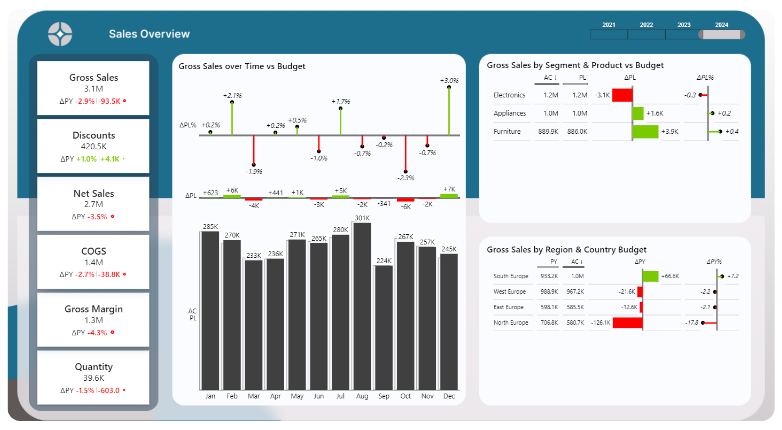
12. Design Effective KPI Cards and Metrics Display
KPI card design represents fundamental power bi design tips that directly affect stakeholder comprehension and confidence. Specifically, well-designed metric displays provide immediate context, trend indicators, and comparative benchmarks for fast decisions. Furthermore, this is the highest-leverage visual on most dashboards.
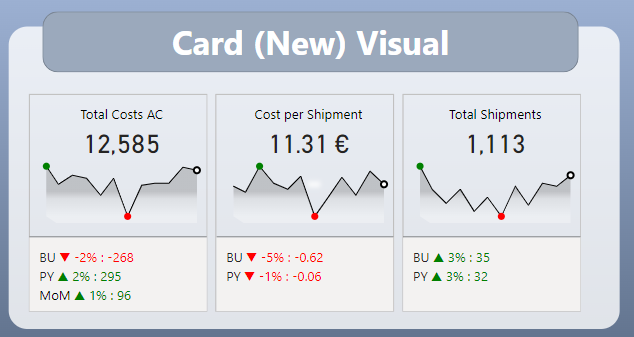
Professional KPI Card Elements:
- Large, prominent numbers with appropriate decimal precision.
- Clear metric labels matching business vocabulary exactly.
- Trend indicators showing directional movement over time.
- Contextual information such as targets or previous-period comparisons.
- Consistent sizing and positioning across every KPI card.
Card arrangements should follow importance hierarchy. Specifically, critical business metrics receive prime real estate in the top-left, secondary metrics fill the top-right, and supporting indicators occupy remaining space. Therefore, the power bi layout mirrors the priority order in the user’s head.
13. Implement Background Images and Branding
Background images establish brand identity and visual structure as part of comprehensive power bi design tips. However, backgrounds must enhance — not compete with — data visualization for user attention. Moreover, this is one of the easiest places to overdo it.
If your background images compete with your charts, the background wins. As a result, the data loses — and so does the dashboard.
Professional background implementation uses subtle branding, opacity around 5-15%, and strategic placement that supports rather than distracts from the data story. Furthermore, backgrounds should preserve accessibility standards and perform well across devices. For practical methods, see my deep dives on Power BI background image setup and the four ways to create Power BI backgrounds.
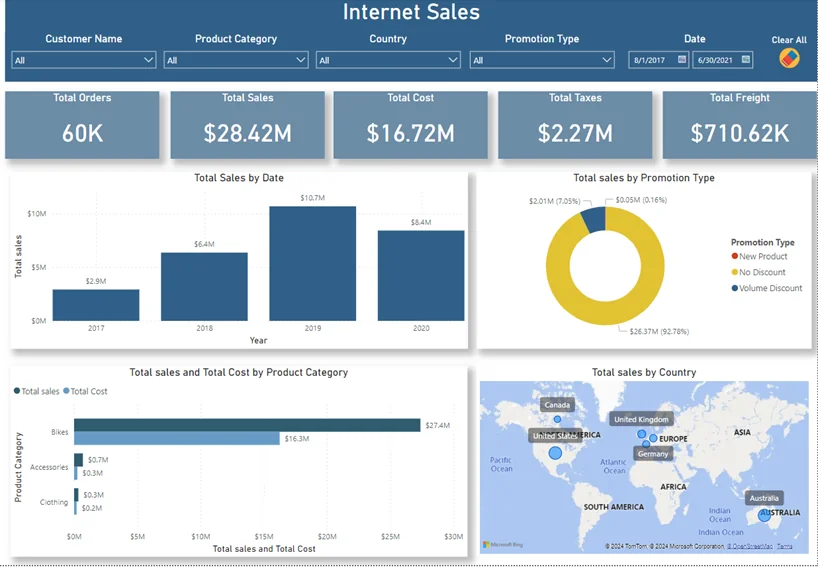
14. Optimize Filter and Slicer Placement
Strategic filter placement represents crucial power bi layout best practices that directly affect user workflow and dashboard performance. Specifically, poorly positioned slicers create confusion and slow analysis, while well-planned filter layouts improve productivity meaningfully. Furthermore, slicer placement is an explicit power bi page design decision, not an afterthought.
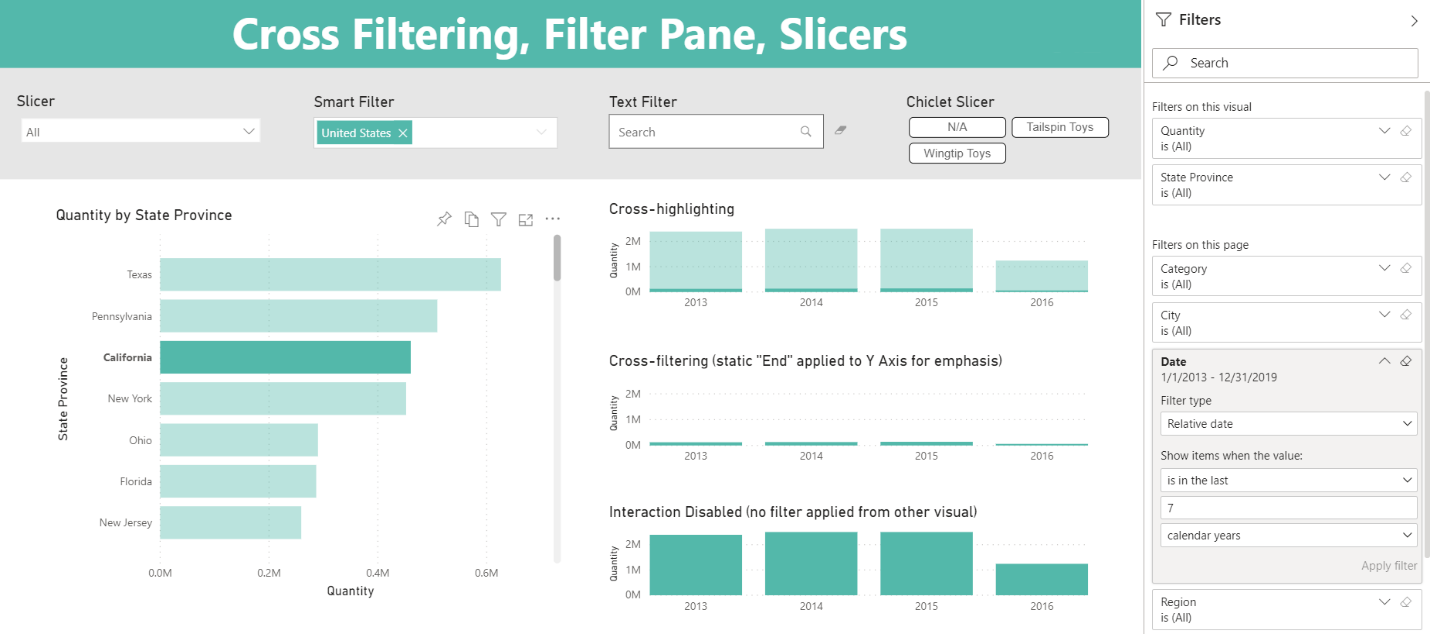
Filter Placement Strategy:
- Position global filters at the top for maximum visibility.
- Place page-specific filters in consistent locations (typically a right sidebar).
- Group related filters logically (time, geography, categories).
- Use clear labels matching business terminology exactly.
- Implement consistent styling across every filter element.
Consider filter interdependencies when designing layouts. For example, time-based filters often drive other selections, so positioning them prominently makes sense. Additionally, geographic and categorical filters can occupy secondary positions while remaining easy to reach.
15. Test and Iterate Based on User Feedback
Continuous improvement through user feedback is the most important of all dashboard design principles. Specifically, regular testing surfaces usability issues that designers miss and reveals optimization opportunities that move adoption rates meaningfully. Furthermore, iteration is the only way to make a dashboard truly fit its users.
Professional testing covers stakeholder interviews, usage analytics review, and performance monitoring across devices and network conditions. Moreover, establishing a feedback loop ensures dashboards evolve with the business. To accelerate the prototyping phase, my dashboard wireframe templates give you 71 ready-to-edit reference layouts.
Tools and Resources for Power BI Layout Design
The Power BI Background Designer — Now a Figma Plugin
Accelerate your design process: After applying these power bi dashboard design best practices across hundreds of projects, I built the Power BI Background Designer to remove the most time-consuming part of power bi layout work — the layout foundation and background setup. Furthermore, it now lives where designers already work: inside Figma.
The plugin tackles the core challenge every Power BI developer faces: producing pixel-perfect, brandable backgrounds that establish professional visual hierarchy from day one. Specifically, instead of jumping between PowerPoint and Figma, you stay in one tool and ship production-ready backgrounds in minutes. Furthermore, every layout follows the same power bi layout best practices covered above.
Key Plugin Capabilities for Professional Developers:
- Instant canvas sizing tuned for the most common power bi layouts.
- Brand color integration with one-click theme application.
- Professional spacing built on the 8-point grid system.
- KPI card layouts with perfect alignment and consistent sizing.
- Export formats (PNG, JPG, SVG) sized exactly for Power BI.

The plugin embodies the power bi design tips in this guide — the 8-point grid, color theory, and visual hierarchy are baked in by default. As a result, you get consistency across projects without re-deciding the basics every time. Moreover, browse the Power BI dashboard background templates page to see ready-made layout variations.
Frequently Asked Questions
What are the most important Power BI dashboard design best practices?
The most important power bi dashboard design best practices are: master your power bi layout grid (a 1664×936 canvas with an 8-point grid works well), implement visual hierarchy with key metrics in the top-left zone, limit colors to 3-5, standardize typography, maintain consistent spacing, and design mobile-friendly variants. Specifically, those fundamentals create the polish stakeholders immediately notice.
How do I make a Power BI dashboard look good?
To make a Power BI dashboard look good, focus on three things: a clean power bi dashboard layout grid with consistent spacing, a restrained 3-5 color palette with neutral backgrounds, and a clear visual hierarchy that puts the most important KPI in the top-left. Furthermore, replacing the default canvas size with 1664×936 instantly produces more breathing room and a more professional feel.
What is the difference between Power BI layout and Power BI dashboard design?
Power BI layout refers specifically to the spatial arrangement — canvas size, grid system, visual placement, and alignment. By contrast, power bi dashboard design is the broader discipline that includes layout plus color, typography, KPI card structure, information architecture, and visual storytelling. In other words, layout is one ingredient inside design.
How do I choose the right colors for my Power BI dashboard?
Use the 3-5 color rule: choose 2-3 primary brand colors, add 1-2 neutral tones, and reserve high-saturation colors for highlights. Specifically, neutral backgrounds (white, light gray) make data visualizations pop, and consistent color meanings across pages improve comprehension. Additionally, always test palettes for accessibility and color-blind users.
What canvas size should I use for Power BI dashboards?
For desktop dashboards, 1664×936 pixels works well — it is 30% larger than the default while preserving the 16:9 ratio. Furthermore, mobile-optimized reports may use 4:3 or portrait variants. For full sizing rules including 4K and embedded scenarios, see my Power BI canvas size guide.
How many visuals should I include on a Power BI dashboard page?
Cap each power bi page design at 8-12 visuals for the best balance of performance and clarity. Specifically, more than 15 visuals typically causes loading delays and cognitive overload. Therefore, focus on the metrics that drive a specific decision rather than trying to show everything on one page, and use drill-through for detail.
What are common Power BI design mistakes to avoid?
Common mistakes include using the default canvas size, inconsistent spacing and alignment, too many colors, weak visual hierarchy, overcrowded layouts, the wrong chart type for the question, and zero mobile optimization. Additionally, avoid dark backgrounds with poor contrast, lengthy data labels, and visuals that do not start from a zero baseline.
How do I make my Power BI dashboards mobile-friendly?
Mobile power bi layouts need simplified versions with 3-5 key metrics, vertical stacking for scroll, touch targets of at least 44 px, and clear navigation. Furthermore, test on real devices rather than browser simulation. Specifically, for complex dashboards, building a separate mobile view inside Power BI almost always beats trying to make one layout serve both.
How do I maintain consistent design across multiple Power BI reports?
Build a design system: standardized color palettes, typography scales, spacing rules, and template files. Specifically, document your design decisions, set approval workflows, and use tools like the Background Designer Figma Plugin for consistent foundations. Additionally, regular team training keeps standards in place over time.
What is the best way to implement visual hierarchy in Power BI?
Implement hierarchy through size (primary metrics roughly 40% larger), position (critical info in top-left), color (high contrast for key insights), and typography (a clear heading scale). Furthermore, follow Z-pattern reading flows and use progressive disclosure to reveal information at the appropriate level. As a result, users scan in the order you intended.
How do I balance performance with visual appeal in Power BI?
Optimize performance by capping visuals at 8-12 per page, keeping background images under 2 MB, using appropriate filtering, and testing on target devices. Specifically, choose standard visuals over custom ones when possible, and implement proper data modeling to reduce query complexity. Therefore, performance becomes a design constraint rather than a fix-it-later problem.
Should I use background images in my Power BI dashboards?
Background images can enhance branding and visual structure when implemented correctly. Specifically, use subtle designs with 5-15% opacity, ensure backgrounds do not compete with data visualizations, maintain accessibility standards, and test across devices. Furthermore, the Background Designer Figma Plugin takes care of the technical details automatically.
Can I use Figma to design Power BI backgrounds?
Yes — Figma is one of the cleanest tools for Power BI background design. Specifically, you get layout grids, alignment, color systems, and exact-pixel exports. Furthermore, the Power BI Background Designer Figma Plugin automates the layout work directly inside Figma, exporting PNG/JPG/SVG sized exactly for the Power BI canvas.
Transform Your Power BI Reports Today
Applying these power bi dashboard design best practices turns reports from data displays into business tools stakeholders actually want to use. Specifically, professional design is not about aesthetics for their own sake — rather, it is about creating experiences that accelerate decisions and produce measurable impact.
The combination of strategic power bi design tips, fundamental power bi dashboard design principles, and proven power bi layout best practices creates a framework for consistent excellence across projects. Moreover, when these power bi design best practices are applied systematically, they compound into measurable improvements in adoption, stakeholder satisfaction, and business impact.
Ready to ship better Power BI dashboards?
The 15 best practices in this guide are easier to apply when the layout grid is already in place. The Background Designer Figma plugin handles the layout, so you can focus on the visuals.
- Pick a layout, set colors, export — 60 seconds end to end
- Consistent design system across every dashboard you ship
- Mobile-optimized layouts that work across all devices
📌 Related Reading
Want my full deep-dive on DataCamp beyond Power BI? Specifically, my comprehensive review covers what is worth your time and what is not:
👉 Is DataCamp Worth It? Full DataCamp Review