
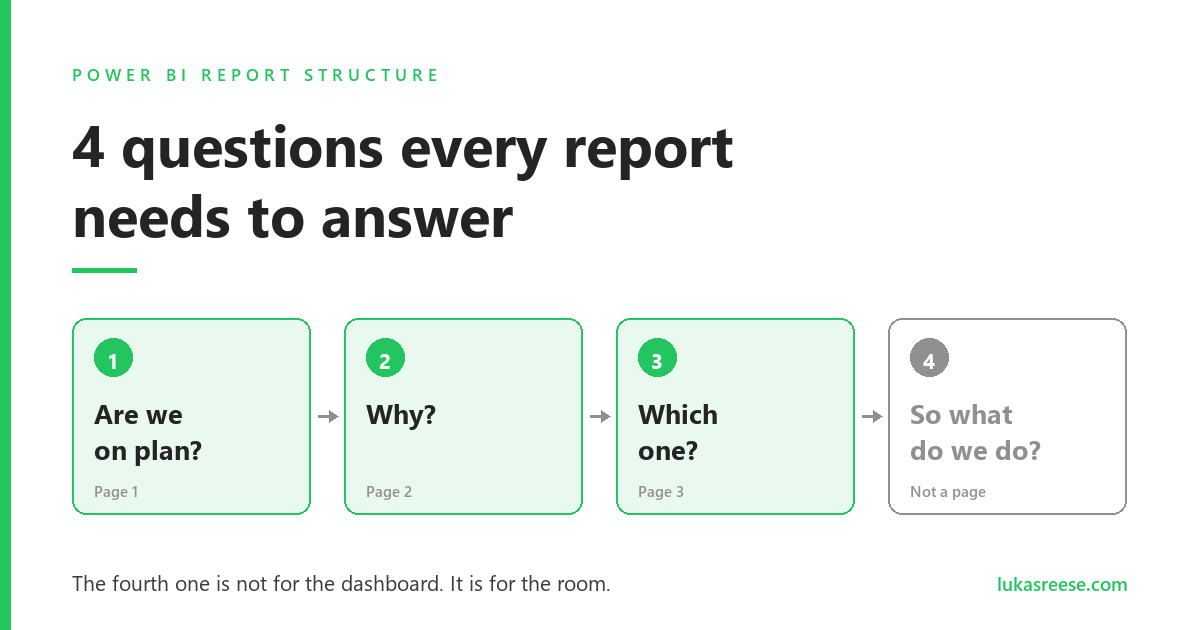
Power BI report structure is not about where you place the visuals. Rather, it is about the order of the questions your pages answer. Most reports fail because nobody ever decided that order, so the pages accumulate instead of building an argument.
After rebuilding a sales report from twelve pages down to three, I stopped treating pages as containers. Instead, I now write the question at the top of the page before placing a single visual. As a result, the report got shorter and people actually started opening it. Below is how to structure a Power BI report around the four questions every report needs to answer, with screenshots from a live three-page build.
Build these 4 questions into a page with AI
My free guide shows how I plan and build a page like this with Claude Code: 25 pages, 7 prompts you can copy, and the PBIP file with the finished page.
How I Build Power BI Reports with AI
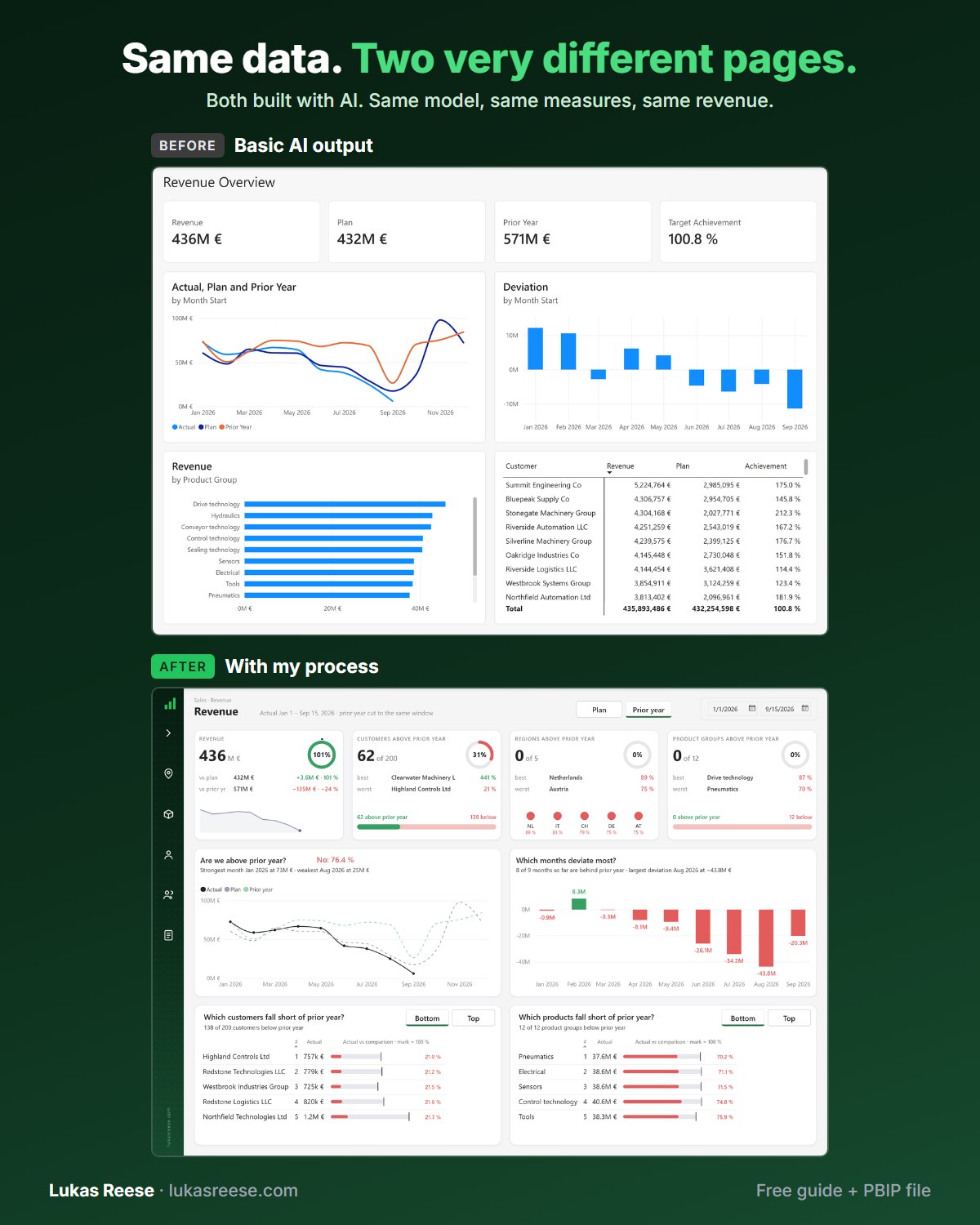
Same data, two very different pages. Both built with AI. This is the process behind the second one.
What you get:
- The 25-page guide: my full process, tool stack and 7 prompts you can copy
- The PBIP file with the same revenue page twice: the basic AI output and the finished page
- Step-by-step explanation, inspiration and real output.
Important: confirm your email
- After you sign up, you get a confirmation email. Click the button in it, then the guide and PBIP file are on their way.
- Power BI report structure is sequence, not spacing. Layout decides how a page looks; structure decides whether the page should exist at all.
- Four questions, in order: Are we on plan? → Why? → Which one? → So what do we do about this gap? Notably, question two applies whether the answer to question one was yes or no.
- Three pages carry the first three questions. Consequently, a fourth page is almost always a symptom, not a requirement.
- Question three is dimension-agnostic. “Which one” means which customer, product, region or rep — one page with a view switcher, not four pages.
- The fourth question is not for the dashboard. Above all, deciding what to do is a conversation between people, and your report should hand it over rather than fake an answer.
What Power BI report structure actually means
Power BI report structure is the sequence of questions your report pages answer, and the order in which a reader moves through them. Report layout, in contrast, is the arrangement of visuals inside one page. Structure decides which pages exist; layout decides what they look like.
That distinction sounds academic until you open a report with fifteen tabs named Sales, Sales 2, Detail and Detail (new). Every one of those pages was added because somebody asked for a chart. However, nobody ever asked what question the page was for. Consequently, the report became a filing cabinet rather than an argument.
A report page is not a container for visuals. It is the answer to one question — and it should end on the question that the next page answers.
The classic answer to this is the overview to detail flow: a summary page first, then progressively narrower pages beneath it. That instinct is right, although it stops one step short. Specifically, it says pages should get narrower without saying what each page is for, which is how Power BI report navigation ends up as a tab strip of nouns rather than a chain of questions.
If the difference between the two terms is still fuzzy, my guide on the difference between a Power BI dashboard and a report covers the vocabulary. Furthermore, Microsoft’s own overview of Power BI reports confirms that a report is a multi-page narrative rather than a single canvas.
The 4 questions every report needs to answer
A working Power BI report structure answers the same four questions in the same order, whatever the industry. Specifically: are we on plan, why, which one, and what do we do about it. Each question is only askable once the previous one has an answer, which is exactly why the order matters more than the visuals.
| # | Question | Lives on | Typical visual |
|---|---|---|---|
| 1 | Are we on plan? | Page 1 | KPI cards, trend line |
| 2 | Why? | Page 2 | Bridge, waterfall or top/bottom ranks |
| 3 | Which one? | Page 3 (drill through) | Profile card, order table |
| 4 | So what do we do? | No page | A meeting |
Question 1 — Are we on plan?
This is a yes or no question, and the page must answer it in one glance. Moreover, it should answer it before the reader scrolls, filters or clicks anything. If somebody has to interpret three charts to work out whether the month was good, page one has failed.
Question 2 — Why?
Question two runs in both directions, and that matters more than it sounds. If we are on plan, why are we on plan? Equally, if we are off plan, why not? A green number nobody can explain is as risky as a red one, because you cannot repeat what you cannot account for.
How you answer it depends entirely on the business. Root cause analysis, a waterfall or variance bridge, or simply the best and worst selling products, customers or regions — all of them are valid. Specifically, the right one is whichever matches how your business already explains itself. In effect, this page turns one number into its parts.
Question 3 — Which one? Customer, product, region or rep
Question three is deliberately dimension-agnostic. “Which one” means whichever entity your business actually manages: which customer, which product, which region, or which account manager. Similarly, the page that answers it does not change — only the dimension does.
This is the point most report structures get wrong. Rather than building four near-identical pages, build one page with a view switcher. In the report below, a single root-cause page carries Customer, Product, Manager and Country as four buttons.
Question 4 — So what do we do about this gap?
This one has no page, and that is intentional. Additionally, it is the only question in the chain that a report genuinely cannot answer, because the answer depends on capacity, pricing authority, relationships and appetite for risk — none of which live in your semantic model.
The fourth question is the only one that matters, and it is the one your report must refuse to answer. That one is not for the dashboard. It is for the room.
Want to level up your Power BI skills?
DataCamp offers structured, hands-on courses in Power BI, DAX, and data visualization — built for practitioners rather than beginners. Moreover, new users get a significant discount on their first subscription.
Explore DataCamp Courses →How many pages should a Power BI report have?
Three. A sound Power BI report structure allocates one page per answerable question, plus tooltip pages and drill-through targets that readers never navigate to directly. Anything beyond that is usually a page somebody asked for rather than a page the argument needed.
In my most recent build, the report started at twelve pages and shipped with three. Furthermore, nobody asked where the other nine went. The visuals were not deleted — they were folded into the page whose question they actually served.
| Page | What belongs | What does not |
|---|---|---|
| 1 · Revenue | Status against plan, trend, top and bottom ranks | Row-level tables, explanations |
| 2 · Root cause | Variance bridge, volume/price/mix, or best and worst sellers | Repeated KPI cards |
| 3 · Detail | One entity in full: profile, margin, open quotes, orders | Company-wide totals |
Reports that sprawl past five pages usually have a deeper problem than navigation. Indeed, unclear scope is one of the patterns I describe in why Power BI projects fail, and page count is often the first visible symptom.
Page 1: are we on plan?
Page one of any Power BI report structure answers yes or no, in words, above the fold. Everything else on the page exists to support that single verdict rather than to compete with it.
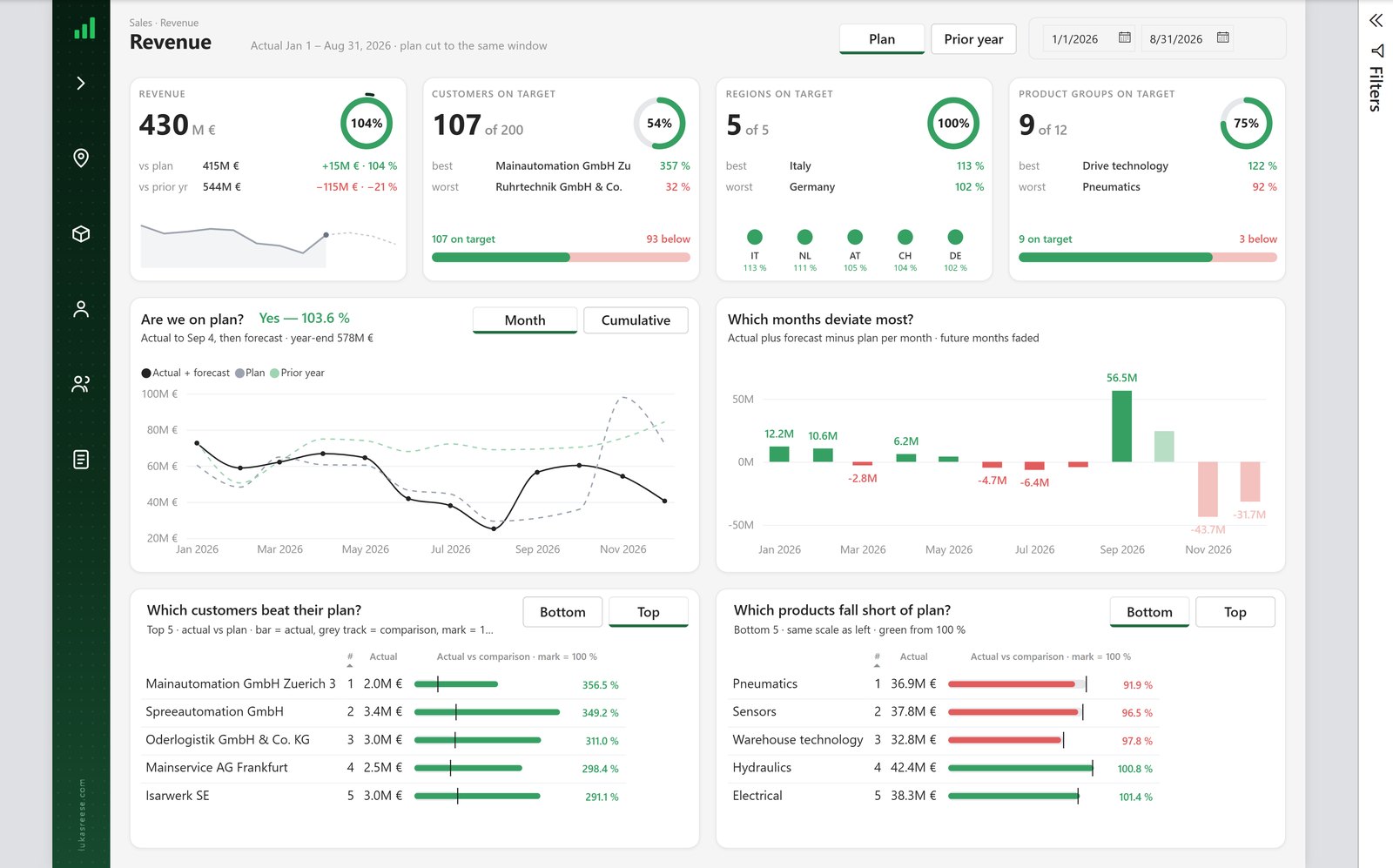
What belongs on the first page of a Power BI report
Four KPI cards, one trend chart, and two rankings. In this build, the cards read 431 M € revenue at 103 % of plan, 105 of 200 customers on target, 5 of 5 regions on target, and 9 of 12 product groups on target. Accordingly, a reader knows the shape of the year in about four seconds.
Every card carries its own comparison — against plan and against prior year — so the number never floats without context. For the anatomy of a card that does this well, see my walkthrough of a Power BI KPI card with references and a line chart.
What does not belong on page one
No row-level tables, and no explanations. Likewise, no page-one visual should require the reader to already know the answer to question two. If a chart on page one only makes sense after somebody has explained the variance, it belongs on page two.
Keep the count honest as well. Most guidance lands around six to ten insights per page, and the seven key features of an effective executive dashboard is a useful sanity check before you add the eleventh visual.
Page 2: why?
Page two explains the number from page one, whichever direction it went. Above all, it should account for the whole gap rather than leave the reader assembling a story from unrelated charts.
There is no single correct visual here. A variance bridge works well when the business thinks in plan versus actual, whereas a ranked table of best and worst selling products or customers works better when it thinks in winners and losers. Accordingly, pick the one your stakeholders already use when they explain a month out loud.
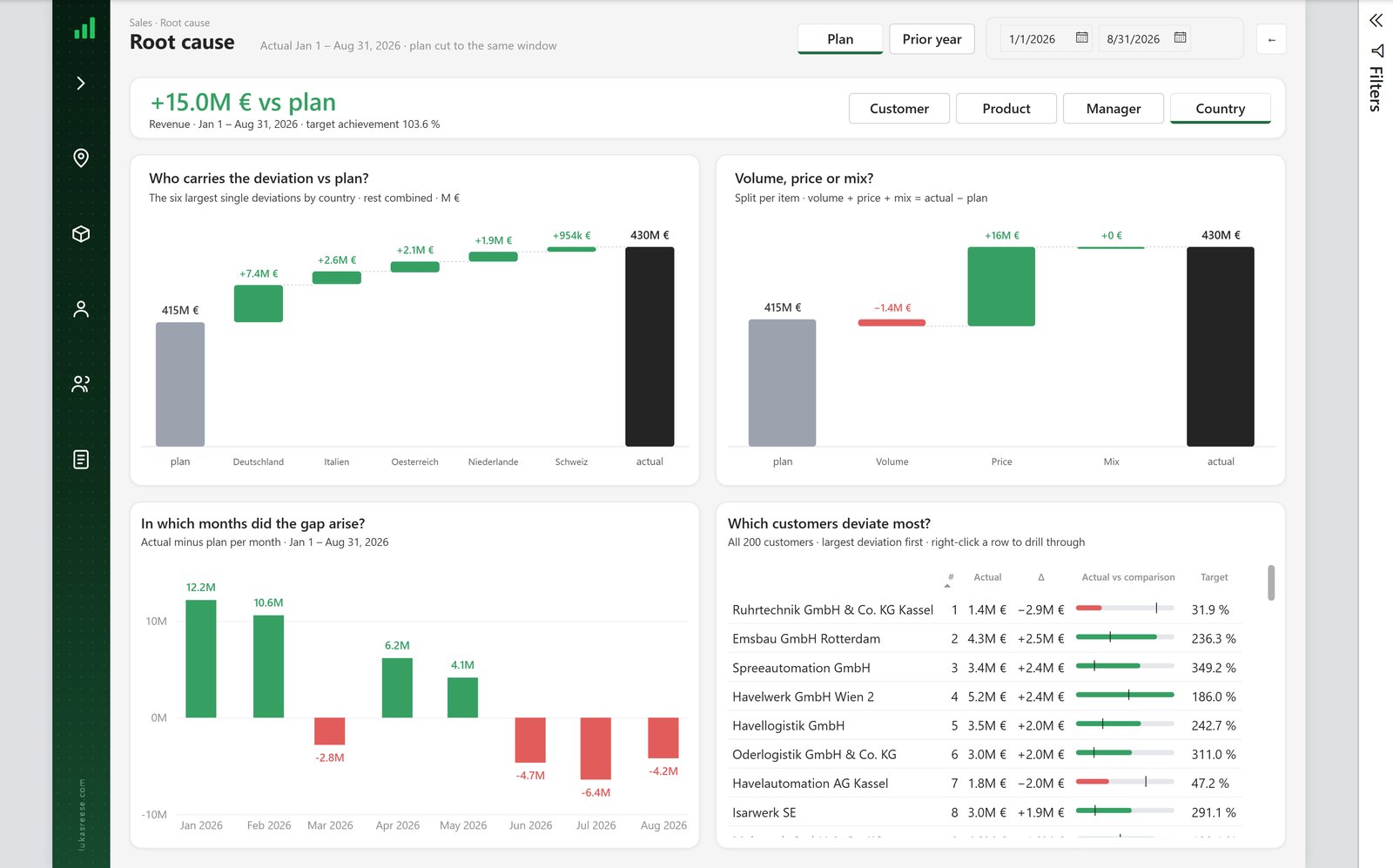
A variance bridge is a waterfall chart that starts at plan, adds one bar per contributor, and lands on actual. In other words, it makes the gap additive: every column is a named piece of the difference, and the pieces sum exactly to the total.
One page, four dimensions
The four buttons in the header — Customer, Product, Manager, Country — swap the dimension without changing the page. Consequently, question three stays generic and the report does not grow a page per dimension.
This is a measure-level switch rather than four duplicated visuals, which keeps the page count flat as the business adds dimensions. Similarly, moving filters into a pop-up filter panel keeps the canvas free for the argument instead of the controls.
Page 3: which one?
Page three takes one entity and shows everything about it. Notably, the reader never navigates here from a menu — they arrive by right-clicking the row they care about on page two.
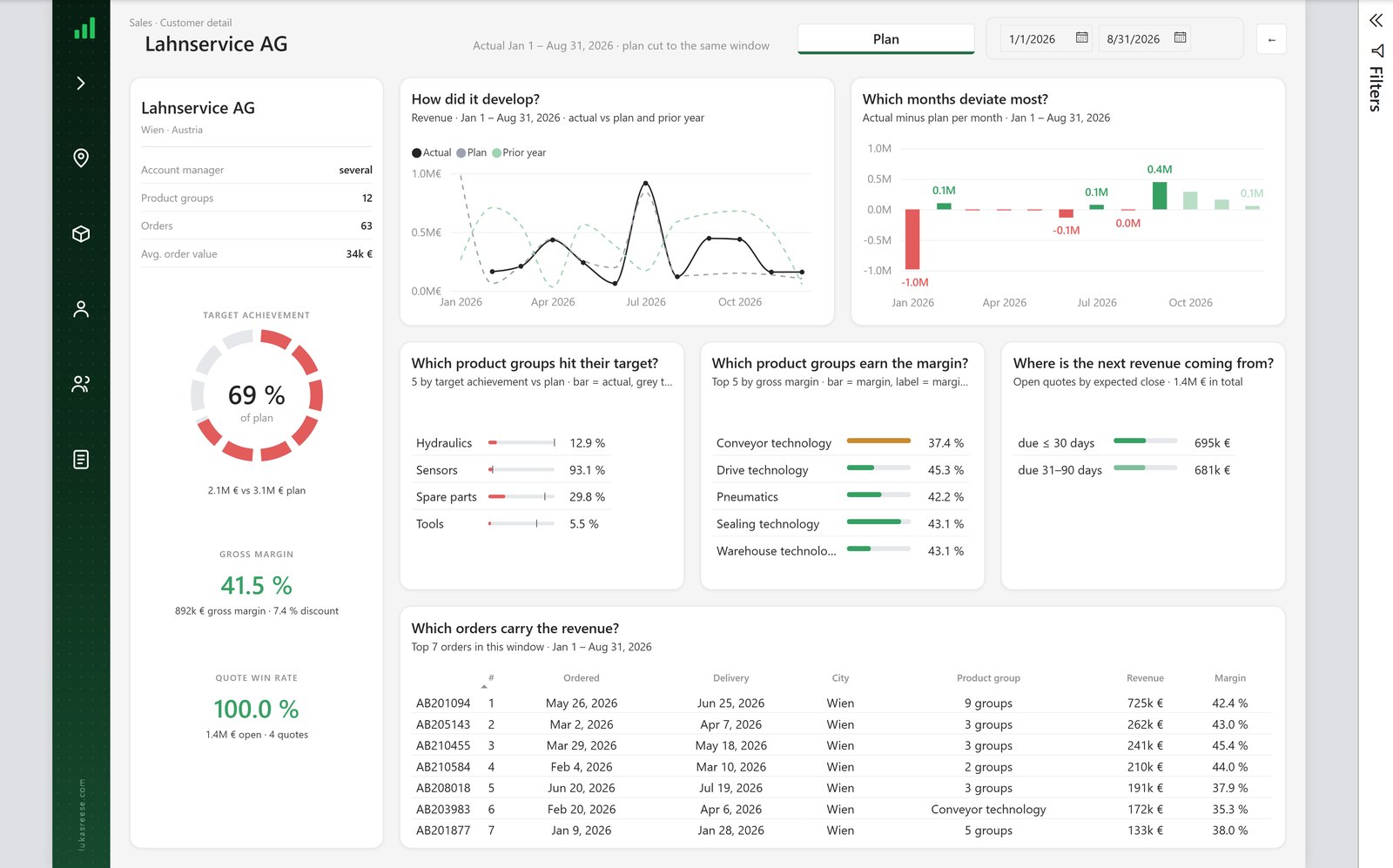
Drill through is what lets you delete pages
Power BI drill through is a navigation feature that passes the selected row’s filter context to a target page, so one page template serves every entity in the table. Therefore, a report with two hundred customers needs one detail page, not two hundred.
Read that as a structural decision rather than a feature tutorial. Every “by customer” or “by product” page you were about to build is a drill-through target in disguise. Microsoft documents the mechanics in set up drill through in Power BI Desktop, and I compare it with drill down in drill through vs drill down.
Power BI report structure vs report layout
Structure and layout are different jobs, and doing the second without the first is why so many beautiful reports go unused. In particular, almost every guide that promises “report structure” actually teaches Power BI report layout — grid, spacing, typography and colour. Those things matter, but they are the second decision.
| Structure | Layout | |
|---|---|---|
| Question | Should this page exist? | Where does this visual go? |
| Decided | Before you open Desktop | On the canvas |
| Tools | A sentence per page | Grid, spacing, theme, typography |
| Failure | Fifteen pages nobody opens | A cluttered but well-meant page |
Once the structure is settled, Power BI report design is the enjoyable part. My Power BI dashboard design best practices guide covers grid, hierarchy and colour in depth, while the 71 dashboard wireframe examples give you a starting shape for each of the three pages. Microsoft’s Design Power BI reports training module covers the same ground from the product side.
The 5-minute Power BI report structure audit
Run this Power BI report structure check on something you already shipped. Above all, be honest about the first item, because everything else follows from it.
- Say the question out loud for each page. If you cannot, the page has no job.
- Check the order. Does each page end on the question the next page answers? Otherwise the reader has to invent the path.
- Count the pages that answer the same question. Consequently, any duplicates collapse into one page with a view switcher.
- Find the pages nobody reaches. Any page reachable only from the tab strip is either a drill-through target or dead weight.
- Look for a page that tries to answer question four. Similarly, any “recommended actions” visual built from static text is a placeholder for a meeting nobody scheduled.
If you cannot say out loud what question a page answers, delete the page. Nobody will notice.
Three failure patterns show up again and again. First, the wall — one page holding every visual anybody ever requested. Second, the orphan — a page reachable only by scrolling the tab strip. Third, the double — a page that answers two questions and therefore answers neither well.
Structure is cheapest to fix on a wireframe. The Power BI Background Designer generates dashboard backgrounds and page layouts in Figma, so you can lay out all three pages before touching Desktop.
Get the plugin →First 25 customers · then €249 · One-time purchase, no subscription.
Frequently asked questions
How many pages should a Power BI report have?
Three, in most cases: one for status, one for cause, one for detail. Additionally, tooltip pages and drill-through targets do not count, because readers never navigate to them directly. If you need more than five, the report is probably covering two topics that deserve separate reports.
What should go on the first page of a Power BI report?
A plain-language answer to “are we on plan”, supported by four KPI cards, one trend chart and two rankings. Above all, avoid row-level tables here. In effect, page one is a headline, and detail on a headline is a contradiction.
When should I use drill through instead of adding another report page?
Whenever the new page would show the same visuals for a different entity. Specifically, if you catch yourself naming pages “by customer” or “by product”, that is a drill-through target rather than a page. As a result, one template serves every row in the table.
What is the difference between Power BI report structure and report layout?
Power BI report structure is the sequence of questions the pages answer; layout is the arrangement of visuals inside one page. In other words, structure decides whether a page exists, and layout decides what it looks like. Consequently, structure should be settled before Power BI Desktop is even open.
Why does nobody use the Power BI report I built?
Usually because it answers no question in particular. Moreover, a report that shows data without a verdict forces every reader to do the interpretation themselves, and most will simply not bother. Start by writing one question at the top of each page and removing whatever does not serve it.
Should every Power BI page have its own filters?
No — the filter context should follow the reader through the question chain. Otherwise, they re-select the same month on every page and lose their place in the argument. Accordingly, keep filters at report level and let drill through carry the selected row forward.
Structure first, then design
The four questions are not a template you copy. Rather, they are a test you run before building anything: if a page does not answer one of them, it should not exist. Overall, that single rule removed nine pages from my last build and made the remaining three worth opening.
Good Power BI report structure starts with the sentence, not the canvas. Then, once each page has a job, spend your time on building the report faster — because at that point, speed is finally worth having.
Last updated: 6 September 2026. Written by Lukas Reese, a freelance Power BI consultant building reporting systems for clients in Germany and the US.