
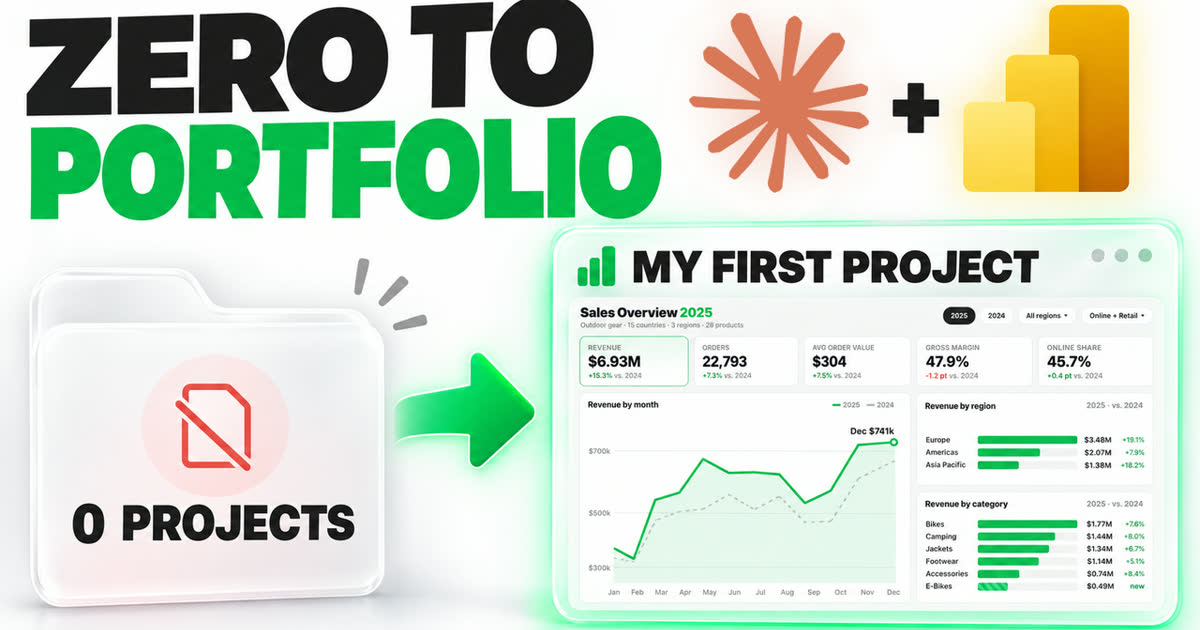
A Power BI portfolio project shows what you can actually build, and you do not need real data to make one. In this guide, I build a complete sales report from zero with Claude: sample data with seasonality, a star schema semantic model and a report with three pages. All I start with is an empty Power BI file and two prompts.
I followed every step in my YouTube video, so you can watch the build and read the steps side by side. Moreover, I share the exact prompts and the things that went wrong, because the first version was not perfect. If you want to build a Power BI report with AI for the first time, this is a good project to start with.
The full build on YouTube: from an empty file to a finished report.Key takeaways
- You do not need company data for a Power BI portfolio project. Claude can write realistic sample data with seasonality for you.
- The Power BI Modeling MCP server builds the semantic model, and the powerbi-report-cli skill tells Claude how to build the report.
- Two Power BI Desktop settings matter: Desktop Bridge and “Detect and reload external PBIP changes”.
- Ask for an HTML mockup first, so you can fix the design before anything is built.
- The first version is a draft. In my case, one round of concrete feedback already fixed most of it, but a real portfolio report needs more iterations than this short concept.
- The same steps work for any data analyst portfolio topic, from sales to finance or marketing.
What is a Power BI portfolio project?
A Power BI portfolio project is a finished report you build to prove a skill. It has a data model, measures and pages that answer real business questions. In other words, it is something a hiring manager or client can open and click through, instead of a line on your resume.
A portfolio shows what you can build. A resume only says that you can.
It worked for me, too. When I applied for a job many years ago, I built a small portfolio project: a cohort analysis. I showed it to the client and got hired. As a result, I always recommend building one report that fits the problem of the company you want to work with.
However, most people get stuck on the data. You cannot show the reports you built at work, because they contain client and sensitive information. Public datasets are an option, but everyone uses the same ones. That is the problem this guide solves.
What you need: the Claude Code Power BI setup
You need three things: Power BI Desktop, a coding agent like Claude Code, and two Microsoft tools that teach the agent Power BI. Both Microsoft tools are free on GitHub. Together, they are my whole Claude Code Power BI setup for this build.
| Tool | What it does | Do you need it? |
|---|---|---|
| Power BI Desktop | Holds the file, loads the data and shows the report. | Yes |
| Claude Code | The coding agent that writes the data, the model and the report files. | Yes. Any coding agent works, but I use Claude Code. |
| Power BI Modeling MCP server | Connects Claude to your semantic model: tables, relationships, measures, refresh and DAX queries. It cannot build report pages. | Yes, for the semantic model. |
| semantic-model-authoring skill | Written instructions for building a good semantic model. | Optional. The MCP server can build the model on its own. |
| powerbi-report-cli skill | Written instructions for planning, designing and building report pages and visuals in a PBIP. | Yes, for the report. |
Power BI Modeling MCP server or skill: what is the difference?
In short, the MCP server is the hands and the skill is the recipe. The Power BI Modeling MCP server is a Microsoft tool that connects an AI agent to a Power BI semantic model in Desktop, in a PBIP folder or in a Fabric workspace. According to its README, it can only run modeling operations and cannot change report pages. A skill is a set of written instructions. It cannot write files on its own; instead, Claude reads it and writes the files following it.
Microsoft lists Claude Code, GitHub Copilot CLI, Cursor and Codex among the agents that skills-for-fabric supports. Specifically, you can find the semantic-model-authoring and powerbi-report-cli skills in Microsoft skills-for-fabric, and the server in microsoft/powerbi-modeling-mcp. For this guide, I assume the MCP server is already installed. I also wrote a separate post on what Power BI Report CLI does.

Step 1: Start your Power BI portfolio project with an empty PBIP file
Open Power BI Desktop, create a blank report and save it as a Power BI project (PBIP). A Power BI project (PBIP) is a way to save a report as plain text files, with one folder for the report and one for the semantic model. As a result, Claude can read and write every part of the file.
Claude can also create the file for you. Still, I find it easier to start from a saved blank file, because it is less prone to errors. I saved mine as “Sales Portfolio Example”. At this point it has no data, no tables and no pages. That is the starting point.
Two limits from the Microsoft PBIP documentation are worth knowing. First, you cannot save a PBIP directly to OneDrive or SharePoint. Second, project paths are limited to 260 characters on Windows by default, so use a short local folder.
If PBIP is new to you, read my comparison of PBIX vs PBIR vs PBIP.

Step 2: Turn on two Power BI Desktop settings
Two settings let Claude work with your open file. Both live under File, Options and settings, Options.
- Desktop Bridge (Global, Security): “Enable external tool access to Power BI Desktop through secure local APIs”. This lets Claude talk to Power BI Desktop and take screenshots of your report, so it can check its own work for errors and misaligned visuals.
- Detect and reload external PBIP changes (Global, Preview features). Claude only changes the JSON files in the background. With this setting on, Desktop asks you to apply those changes, so you do not have to close and reopen the file.
I explain the first one in detail in my post on the Power BI Desktop Bridge.


Get the free guide: how I build Power BI reports with AI
Everything from this build written down: the skills, the prompts and the whole setup, plus a PBIP file to try it yourself.
How I Build Power BI Reports with AI
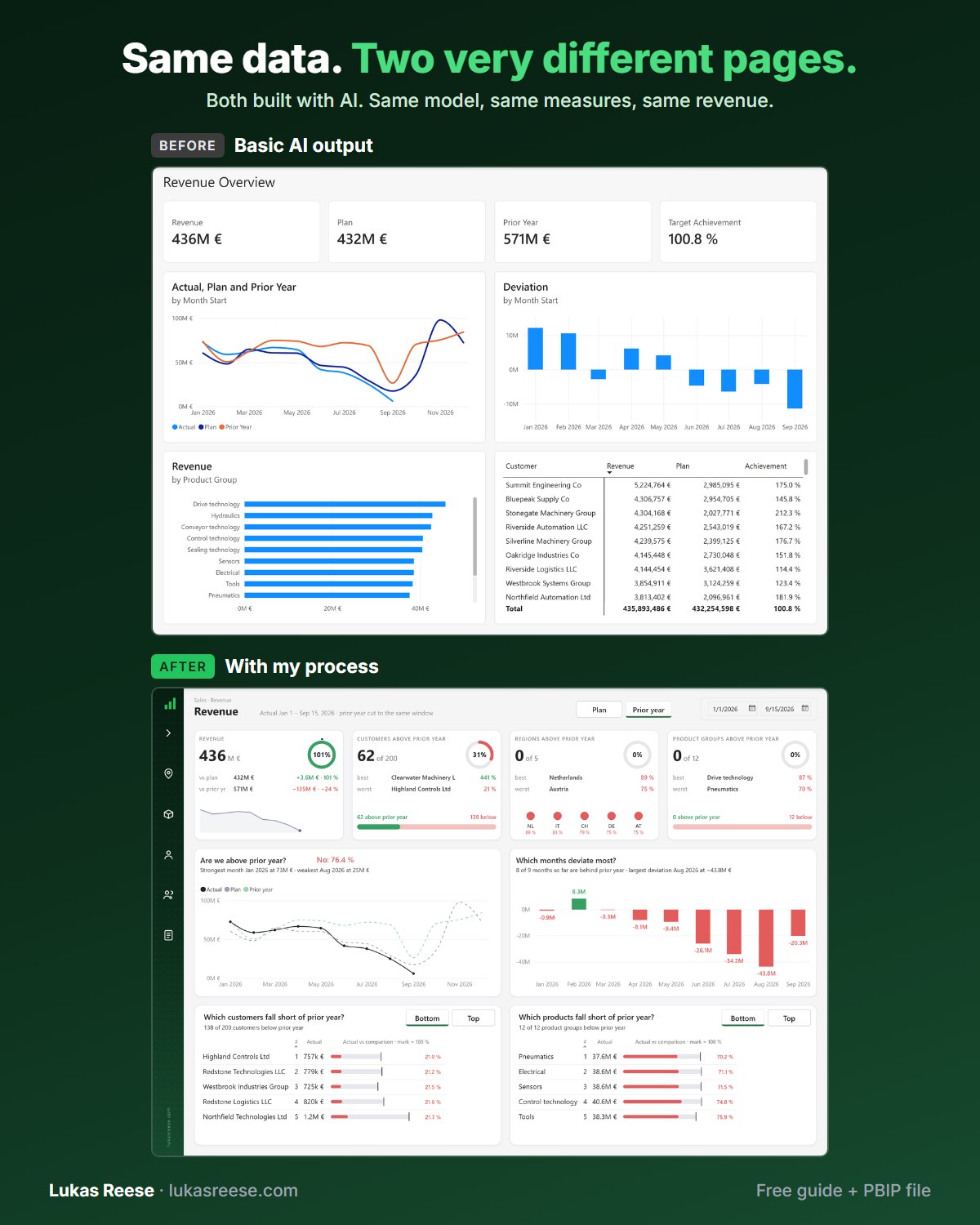
Same data, two very different pages. Both built with AI. This is the process behind the second one.
What you get:
- The 25-page guide: my full process, tool stack and 7 prompts you can copy
- The PBIP file with the same revenue page twice: the basic AI output and the finished page
- Step-by-step explanation, inspiration and real output.
Important: confirm your email
- After you sign up, you get a confirmation email. Click the button in it, then the guide and PBIP file are on their way.
Step 3: Write one prompt for the data, the model and the mockup
One prompt does most of the work. I split it into two parts: first the data and the semantic model, then a mockup of the report. Claude must stop and wait for my approval before it builds anything in the report.
I used a fictional outdoor-gear company, because sales is the easiest topic to understand. Here is the exact prompt from the video.
Prompt 1, part 1: the data and the semantic model
Prompt 1, part 2: the report mockup
Why the best practices are in the prompt
Notice point 4. I spell out the best practices I want, such as one fact table, single-direction relationships and explicit measures. As a result, the model follows them from the start, and I do not have to fix them later.

Step 4: Review the KPIs and the HTML mockup
Claude first suggests the KPIs, then shows an HTML mockup of the report. An HTML mockup is a web page that looks like the finished report. It opens in any browser, it is easy to share, and its filters even work, unlike a static Figma file.
For the look, I attached a design I liked from Dribbble (shout out to Nasim): rounded corners, a sidebar for navigation and the same colors. For example, you can also give Claude a dashboard you built before and say “make it like this”. My guide on dashboard design tools and inspiration has more sources.
My first mockup was good, but not right. The drill-down page was not a real drill-down, and the analysis page was third. So I asked for a hidden drill-through page with order details, including the order number, country and customer. Claude noticed that the data had no customer table yet and asked to add one. After that round, the report had two pages plus one hidden drill-through page.

Step 5: Get Power BI sample data with real seasonality
Good Power BI sample data needs patterns, not just rows. For this build, Claude wrote CSV files for sales, products, countries, customers and a calendar. In my run, the sales table had about 248,000 rows and the product table 46 products. That is enough to make a report feel real.
Seasonality is the part that makes the data believable. Flat random numbers smell like fake data. Instead, I asked for a slow January and February, a summer season, Black Friday and a December peak, with flipped seasons for Australia and Brazil. Consequently, the trend charts show patterns you can actually talk about in an interview.
| Data source | Good for a portfolio? | Why |
|---|---|---|
| Your company reports | No | Client and sensitive data. You cannot show it. |
| Public datasets (for example Kaggle) | Partly | Free and real, but many people use the same ones, and you cannot shape the story. |
| Sample data written by Claude | Yes | You choose the topic, the size and the patterns, such as seasonality and a new product launch. |
I tried a ChatGPT version of this back in 2024, in my post on creating a Power BI dataset with ChatGPT. The difference now: Claude writes the Power BI sample data, loads it and builds the model in one go.

Step 6: Build the semantic model with the Power BI Modeling MCP
A semantic model is the layer between your data and your report: the tables, relationships and DAX measures that every visual reads from. In this step, Claude used the Power BI Modeling MCP server to load the CSV files with Power Query and build the model in my open file. The semantic-model-authoring skill was an extra reference. You can probably use only one of them, but together they work like a superpower.
A star schema is a model layout with one fact table of events, such as orders, in the middle and dimension tables, such as products or dates, around it. As a result of the prompt, I got a clean one. The Sales fact table sits in the middle, with four keys to Customer, Country, Product and Date. The key columns are hidden, and all measures live in a separate ‘!Measures’ table. Microsoft explains why this layout matters in its star schema guidance.
It did not work the first time, though. When I opened Power BI, I saw no tables, no measures and no relationships. So I told Claude exactly that, and it added them through the MCP server. Then I clicked Refresh once, because Power BI has to load the CSV files the first time.

Step 7: Build a Power BI report with AI using powerbi-report-cli
Once the model was right, I sent a second, shorter prompt. It tells Claude to build the approved mockup in the same project with the powerbi-report-cli skill:
Claude then wrote the theme, the pages and the visuals as JSON files, validated the report, reloaded Desktop and took screenshots to check its own work. Meanwhile, Desktop showed an “apply external changes” message. That is the reload setting from Step 2 doing its job.
The full build took almost 28 minutes. However, part of that was my fault: I missed an approval prompt and Claude waited. A single page or a small change is much faster.

Step 8: Review and iterate on your Power BI portfolio project
The first version looked good at first glance. The page navigation worked, the dynamic titles changed with the selection, and right-clicking United States opened the order details page with a back button. Still, there were problems. The black was too strong, the “year at a glance” visual did not work, a trend chart from the mockup was missing, and the visuals highlighted instead of cross-filtering.
So I gave Claude that exact feedback. After one round, the black was gone, the colors were a brighter yellow-green and the year at a glance worked. Filtering by a month changed the numbers, and the dynamic title changed to the region I selected.
The first version is a draft, not the result. Plan for a few rounds of feedback, and make every round specific.
Here are the three final pages. The order details page is hidden and only opens through drill through. Microsoft explains the setup in its drill through documentation, and my guide on drill through vs drill down shows when to use which.
The build in numbers
| What | In my build |
|---|---|
| Prompts to build it | 2, plus follow-up messages for the mockup, the missing tables and the report feedback |
| Sample data | 2 years of daily orders, about 248,000 sales rows, 46 products in 6 categories, 15 countries in 3 regions |
| Semantic model | 1 fact table, 4 dimension tables (Customer, Country, Product, Date) and a measures table |
| Report | 2 visible pages and 1 hidden drill-through page, on a 1,600 x 900 pixel canvas |
| Report build time | Almost 28 minutes, including a few minutes waiting for my approval |


This is not where I would stop
To be clear, these pages are not a finished report. They show the result after only a couple of iterations, and I would not stop here for a real portfolio. This build is a short concept: it shows you how the process works, not how polished the end result can get.
In reality, you would run more rounds of feedback. Over time, you would also build a library of what you like: how you want to visualize certain things, which chart types you prefer, and what the background should look like. Then Claude starts closer to your style every time, and each new Power BI portfolio project needs fewer rounds.
7 lessons learned from my Power BI portfolio project
These lessons come from what actually happened in the video, not from theory.
Lessons 1 to 4: review the work
- Check every measure. Do not trust what Claude builds blindly. For example, I found a “Gross Revenue” measure built as sales plus discount, so I had to check how the discount is stored. Likewise, the analysis page showed a “trend index” I had never asked for. Open each measure and read how it is defined.
- The first version is a draft. It is rarely perfect on the first try. Claude has a good idea, but you refine it, just like on a real project.
- Give concrete feedback. “Make it look better” does not work. “The black is too strong, use cross-filter instead of highlight, the year at a glance does not work” does. Likewise, if you want it to look more like Power BI, show Claude a real Power BI example.
- Mockup first. The HTML mockup took minutes to change. In contrast, the same change in a finished report would have taken a full build.
Lessons 5 to 7: work with Claude and Desktop
- Use Claude Code over Cowork for screenshots. In my tests, only Claude Code worked with the Desktop Bridge, so only Claude Code could take screenshots and check its own work. It did not work for me in Cowork sessions.
- Restart Desktop when it gets stuck. After one build, Power BI Desktop got stuck in a strange state. I asked Claude to close and reopen it, and it restarted Desktop on its own. Then I closed the recovered files window and carried on.
- Build a style guide for next time. Once the feedback rounds are done, write down how you like things: colors, spacing, titles, interactions. In the next session, the skill reads it, so your next report starts closer to the result.
One bonus trick: you can ask Claude to change the PNG background image of a page to match your KPIs and visuals, so you do not need Figma for that. I cover backgrounds in my post on the Power BI background SVG.
Claude writes the data and the model in minutes. You still have to check every measure, because you are the one who presents it.
How to turn one project into a data analyst portfolio
This approach is not only for sales. It works just as well for finance, marketing or HR. The trick is to pick the problem first: if you apply for a job, build a report that fits that company and shows how it could help them.
That is how you show value from the start, and it sets you apart from people who only send a resume. Furthermore, a good portfolio project answers clear business questions. My post on Power BI report structure shows the four questions every report should answer, and my Power BI interview questions help you explain your choices afterwards.
What makes a strong Power BI portfolio
A strong Power BI portfolio is small and focused. One report that solves a clear problem says more than five copies of the same tutorial. For each project, show the report, the semantic model and a short note on the business question it answers. In addition, add the HTML mockup, because it shows how you plan.
Why this is a good Power BI project for beginners
Sales is the easiest topic to start with, because everyone understands revenue, orders and margin. Moreover, you do not have to write the DAX or Power Query yourself. However, you do need to read them, so you can check what Claude built. That makes it a good Power BI project for beginners who learn by reviewing.
One last word of caution: review every measure before you show your data analyst portfolio to anyone.
My free PDF guide explains the skills, the prompts and how I get from a basic report to one with dynamic elements and a good user experience.
Get the free guide →FAQ
Questions about Power BI sample data
Questions about the Claude Code Power BI tools
Last updated: 26 October 2026. Written by Lukas Reese, Power BI consultant, from his own build in the video above.