
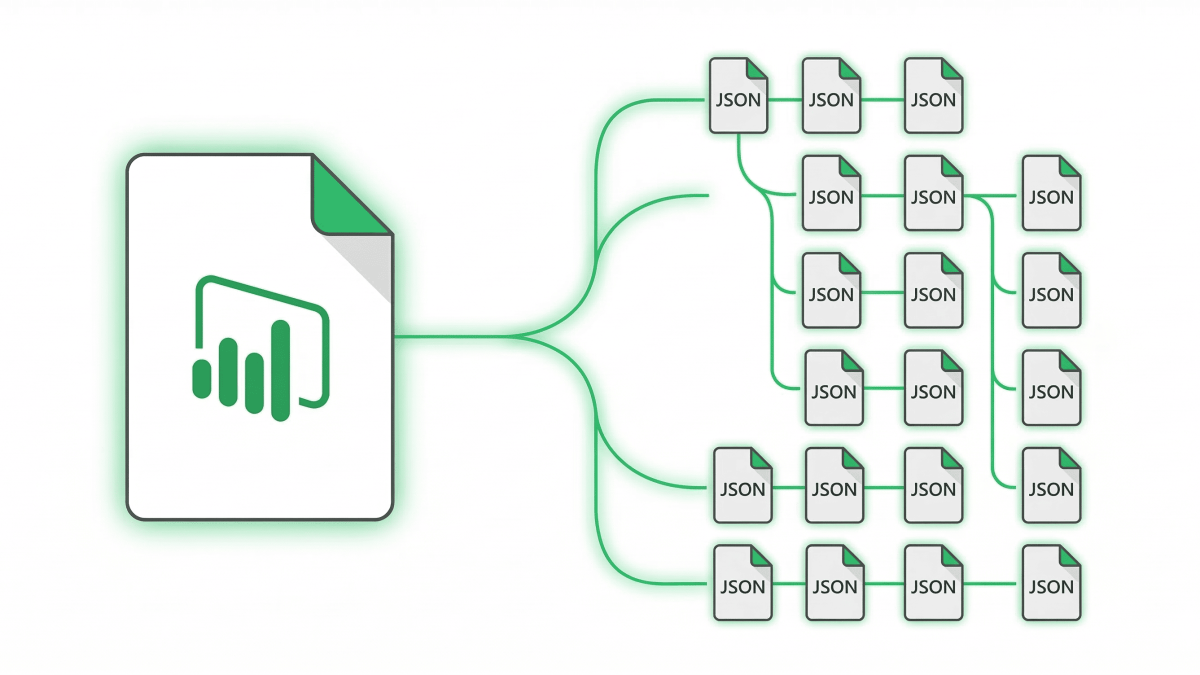
So, what is PBIR? PBIR — the Power BI Enhanced Report Format — stores every Power BI visual, page, and bookmark as an individual JSON file. As a result, reports become readable, diffable, and programmable for the first time. This new format replaces the legacy single-file structure inside PBIP (Power BI Project) files and became the default for all new reports in the Power BI Service in January 2026.
Last updated: March 16, 2026
- PBIR = each visual is a separate JSON file (not one monolithic blob)
- Default for new reports since January 2026 — GA planned Q3 2026
- Enables Git version control, multi-developer collaboration, and CI/CD pipelines
- PBIX isn’t going away — PBIR is the report format inside PBIP projects
- Opens the door for AI-generated Power BI reports through tools like Claude skills
Short on time? The three formats, told apart in sixty seconds.
What is PBIR?
PBIR stands for Power BI Enhanced Report Format. In short, it’s a new way Power BI stores the report layer of your projects — breaking every visual, page, bookmark, and configuration into its own individual JSON file instead of packing everything into a single massive file.
Think of it as an “exploded view” of a Power BI report. In other words, where the old format gave you one giant blob, the Power BI Enhanced Report Format gives you a clean folder of small, readable, editable files.
Why Does This Matter?
Under the legacy format (called PBIR-Legacy), an entire Power BI report lived in a single report.json file. If you’ve ever opened one, you know the pain — thousands of lines, deeply nested, and therefore impossible to diff meaningfully in Git.
However, the Power BI Enhanced Report Format changes that completely. Each visual gets its own file. Each page gets its own folder. Moreover, every file follows a publicly documented JSON schema, which means code editors like VS Code can validate the structure in real time.
The Timeline
Microsoft has been rolling PBIR out in stages. Here’s where things stand as of March 2026:
According to Microsoft’s official announcement, existing reports automatically convert to the Power BI Enhanced Report Format when you edit and save them. Consequently, no manual migration is required.
PBIR vs PBIX — What Actually Changed
First of all, the Power BI Enhanced Report Format is not a replacement for PBIX — instead, it’s a new way the report layer is stored inside Power BI project files. Your existing PBIX files still work exactly as before.
Here’s the key difference: PBIX is a compressed binary container, so you can’t meaningfully read or diff it. PBIR, by contrast, stores everything as structured JSON text files that humans and tools can work with directly.
| Feature | PBIX (Legacy) | PBIR (via PBIP) |
|---|---|---|
| File format | Single compressed binary | Individual JSON files per visual |
| Git friendly | No — binary diffs are meaningless | Yes — text-based, line-level diffs |
| Multi-dev collaboration | Difficult — file locking, merge conflicts | Native — merge per visual/page |
| AI/automation | Requires decompilation | Direct JSON read/write |
| Debugging | Need external tools to inspect | Open any file in VS Code |
| Schema documented | No public schema | Public JSON schemas on GitHub |
| Status (March 2026) | Still supported | Default for all new reports |
In summary, the Power BI Enhanced Report Format gives you everything PBIX didn’t — readability, version control, and programmability. If you’re already following Power BI best practices around development workflows, then PBIR is the missing piece that makes proper source control possible.
PBIR vs PBIP — Don’t Confuse Them
This is the most common point of confusion I see. Although PBIR and PBIP are related, they’re not the same thing.
PBIP (Power BI Project) is the overall project folder format. It contains two things: the semantic model definition (your tables, measures, relationships) and the report definition. In other words, think of PBIP as the container.
PBIR, on the other hand, is specifically how the report layer inside that PBIP project is structured. It’s the format that splits visuals into individual JSON files.
| PBIP | PBIR | |
|---|---|---|
| What it is | Project folder format | Report file format (inside PBIP) |
| Contains | Semantic model + report | Visual/page/bookmark JSON files |
| Relationship | The container | The report structure inside it |
You can’t have the Power BI Enhanced Report Format without PBIP — because PBIR lives inside PBIP projects. If you want to dive deeper into how they work together in a real code-first workflow, I wrote a detailed walkthrough: PBIR and Claude Skills: Power BI as a Code-First Tool.
How PBIR Files Are Structured
When you save a Power BI project with PBIR enabled, the report layer is stored inside a definition/ folder. Every page gets its own subfolder. Every visual inside a page gets its own subfolder and JSON file.
The Folder Hierarchy
MyReport.Report/
  definition/
    report.json                  ← Report-level settings
    pages/
      ReportSection1/
        page.json                ← Page layout and config
        visuals/
          a1b2c3d4e5f6g7h8i9j0/
            visual.json          ← Individual visual definition
          k1l2m3n4o5p6q7r8s9t0/
            visual.json
      ReportSection2/
        page.json
        visuals/
          ...
    bookmarks/
      Bookmark1/
        bookmark.json
By default, pages and visuals use a 20-character unique identifier as their folder name (like a1b2c3d4e5f6g7h8i9j0). You can rename these to something meaningful — a practice I strongly recommend for maintainability.

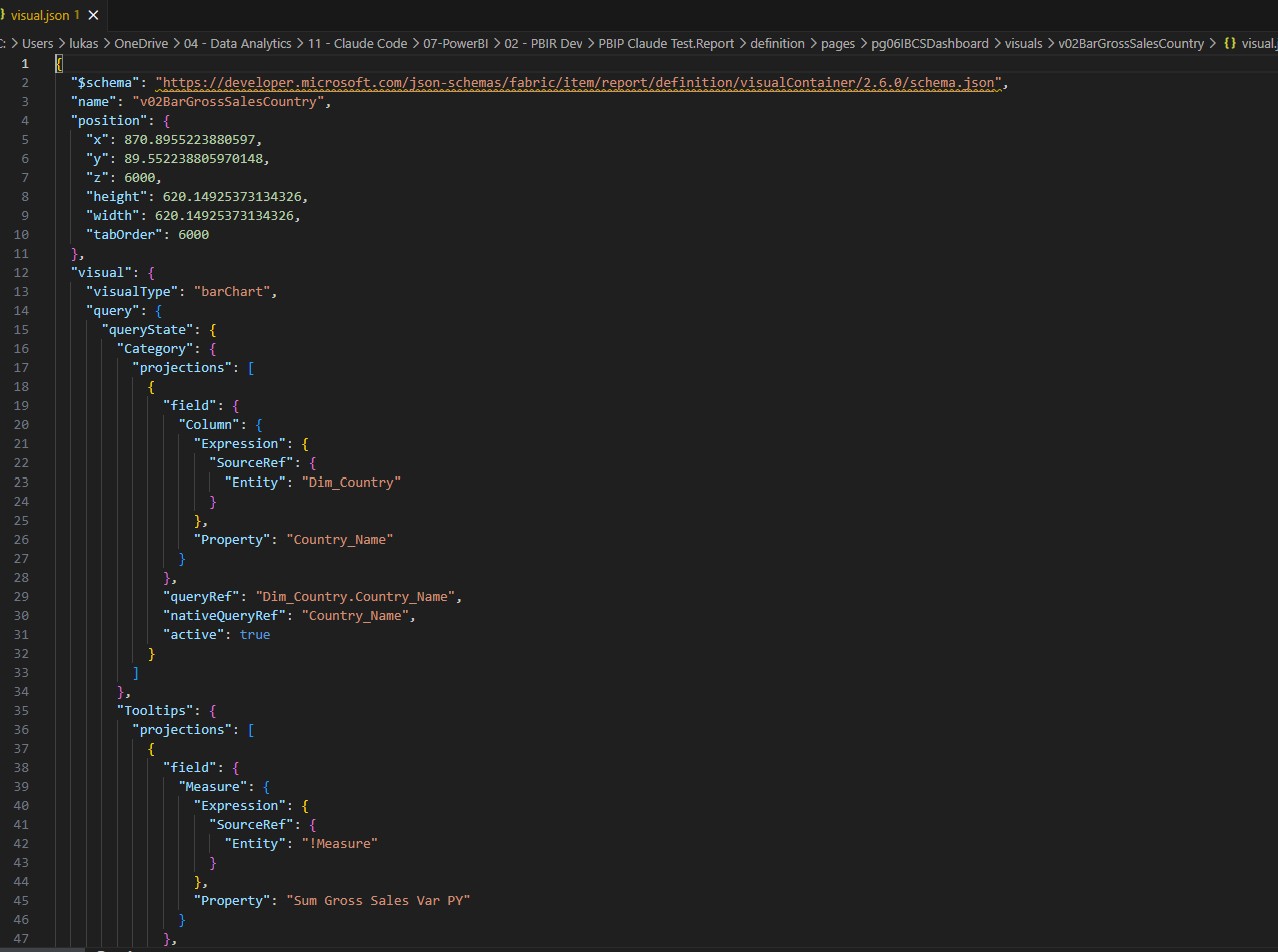
What’s Inside a Visual JSON File
Each visual.json file contains the complete definition of one visual: its type, position on the canvas, size, data bindings, formatting, and conditional formatting rules. Every file starts with a $schema reference that points to Microsoft’s published schema.
{
  "$schema": "https://developer.microsoft.com/json-schemas/fabric/...",
  "name": "a1b2c3d4e5f6g7h8i9j0",
  "position": {
    "x": 24,
    "y": 24,
    "width": 300,
    "height": 200,
    "z": 0
  },
  "visual": {
    "visualType": "clusteredBarChart",
    "query": { ... },
    "objects": { ... }
  }
}
Because these are plain JSON files with documented schemas, any tool — a Python script, a VS Code extension, or an AI assistant — can read, validate, and modify them. This is what makes PBIR fundamentally different from the old format.
Key Files You’ll See in Every PBIR Project
The most important files are definition.pbir (the format marker), report.json (report-level settings like theme and filter pane configuration), individual page.json files (page dimensions, background, display settings), and the visual.json files (one per visual, containing everything that visual needs to render).
Why PBIR Matters — 5 Key Benefits
The Power BI Enhanced Report Format isn’t just a file format change. Rather, it fundamentally shifts how Power BI reports can be developed, maintained, and scaled.
1. Real Git Version Control
With this format, every change to every visual produces a meaningful, line-level diff. As a result, no more binary blob comparisons that tell you nothing. Pull requests for report changes become practical — because a reviewer can see exactly which visual changed and what property was modified.
Microsoft has official documentation on Git integration with Fabric, and PBIR makes this workflow actually usable. In my experience, this alone justifies the switch to PBIP projects.
2. Multi-Developer Collaboration
Because each visual is a separate file, two developers can work on different pages — or even different visuals on the same page — simultaneously. Therefore, merge conflicts are limited to the specific files that changed, not the entire report.
This is a game-changer for teams. For example, if you’re building reports collaboratively, following dashboard design best practices becomes much easier when developers aren’t constantly stepping on each other’s work.
3. CI/CD and Deployment Pipelines
In addition, PBIR reports can be validated, linted, and deployed through automated pipelines. Microsoft’s fabric-cicd Python library already supports deploying PBIP files to Fabric workspaces programmatically.
As a result, you can enforce quality gates — checking for missing alt text, non-standard formatting, or broken data bindings — before a report ever reaches production.
4. AI-Powered Report Generation
Because the PBIR schema is publicly documented, AI tools can write valid visual definitions directly. For instance, I’ve been building Claude skills that generate entire report pages from natural language descriptions — KPI cards, bar charts, trend lines, IBCS variance charts — all without opening Power BI Desktop.
PBIR doesn’t just change how Power BI files are stored — it changes who can build Power BI reports.
The AI writes JSON. Power BI renders it. That workflow simply wasn’t possible before PBIR existed.
5. Easier Debugging and Auditing
For example, need to find which visual uses a specific measure? Simply search across the JSON files. Similarly, want to audit conditional formatting rules across 50 visuals? Write a script. Need to check why a visual isn’t rendering? Just open its visual.json and read it.
Consequently, no more decompiling PBIX files or clicking through the Power BI Desktop UI one visual at a time. If you already work with Power BI JSON themes, you’ll feel right at home with the Power BI Enhanced Report Format’s JSON structure.
How to Start Using PBIR
Getting started with the Power BI Enhanced Report Format is straightforward. Below, you’ll find what you need and the two paths to get there.
Creating a New PBIR Report
If you’re using Power BI Desktop (March 2026 or later), new projects default to PBIR. Just go to File → Save As and choose the Power BI Project (.pbip) format. Your report will automatically use the PBIR structure.
However, on older Desktop versions, you need to opt in manually: go to File → Options and settings → Options → Preview features and enable “Store reports using enhanced metadata format (PBIR)”.

Converting an Existing Report to PBIR
For reports in the Power BI Service, conversion happens automatically when you edit and save — no action needed. The Service has defaulted to PBIR since January 2026.
For Desktop files, on the other hand, save your existing .pbix as a .pbip project (with the PBIR preview feature enabled). Once you do, the report layer converts to the PBIR folder structure on save.
You need Developer Mode enabled in Power BI Desktop to see and work with the PBIR folder structure directly. Without it, Desktop hides the underlying files.
What You Need
The requirements are minimal: Power BI Desktop (latest version recommended), Developer Mode enabled, and a text editor — VS Code is ideal because the PBIR JSON schemas provide IntelliSense and validation. If you’re already comfortable with the Power BI data model view, the PBIR file structure will feel intuitive.
Limitations and Things to Watch
Although the Power BI Enhanced Report Format is powerful, it’s not without rough edges. Here’s an honest assessment of what to keep in mind.
Still in Preview
As of March 2026, the format remains in public preview. General Availability is planned for Q3 2026. Schema versions may still evolve — I’ve hit cases where certain schema versions return 404 errors (v4.0.0 and v1.5.0, specifically).
Learning Curve
The JSON structure takes time to understand. Properties aren’t always named intuitively, and some configurations that are easy in the Desktop UI require digging through nested JSON objects to find.
That said, the published schemas help enormously. For instance, VS Code’s JSON validation catches structural errors immediately, which shortens the learning curve significantly.
Tooling is Still Catching Up
There are no official IDE extensions dedicated to editing these files yet. Community tools are emerging, but the ecosystem is young. For now, you’re working with raw JSON files and whatever validation the schemas provide.
Developer-Oriented Workflow
Business users who work exclusively through the Power BI Desktop GUI won’t interact with these files directly. This is a workflow for Power BI developers, consultants, and anyone comfortable with JSON and file-based approaches.
File paths with spaces can cause issues with some tools when working with PBIP projects on Windows. If you’re scripting against these files, use paths without spaces or handle quoting carefully.
What’s Next for PBIR
While the Power BI Enhanced Report Format is still early, the trajectory is clear. Microsoft is investing heavily — making it the default format, publishing schemas, and building deployment tooling around it. As a result, the GA release in Q3 2026 will remove the “preview” label and likely bring additional schema stability guarantees.
AI Integration is the Biggest Opportunity
Above all, the AI angle is what excites me most. With PBIR, Power BI moves from a GUI-only tool to a platform where reports can be generated, modified, and deployed programmatically. I’ve been exploring this with Claude skills that write PBIR JSON, and the possibilities keep expanding.
With PBIR, Power BI moves from a GUI-only tool to a code-first platform.
Furthermore, the combination of PBIR, PBIP project files, the Power BI MCP Server for data models, and AI-assisted generation creates a development environment that didn’t exist a year ago. For consultants and developers building reports at scale, this is certainly worth paying attention to.
I’m sharing what I learn as I go — including the things that break. If you want to follow along, the business intelligence consulting side of my work is where a lot of this comes together in practice.
PBIR is also what makes agentic report building possible. The Power BI report authoring skill edits these files directly, and the Power BI Desktop Bridge lets the agent see the rendered result.
Frequently Asked Questions
Is PBIR replacing PBIX?
Do I need to convert my existing reports to PBIR?
Can I use PBIR with Git for version control?
What tools do I need to work with PBIR files?
Is PBIR ready for production use?
How does PBIR enable AI-generated Power BI reports?
Want to See PBIR in Action?
I’ve been building Claude skills that generate Power BI reports from PBIR JSON — including IBCS variance charts with zero paid add-ons. See how it works.
Where to go next
PBIR is the format. What makes it worth caring about is what you can now point at it.
- PBIX vs PBIR vs PBIP — the three formats side by side, with the transition timeline.
- Power BI report authoring skill — Microsoft’s official skill for reading and writing PBIR.
- Power BI Desktop Bridge — how the agent reloads a report and checks its own work.
- Speed up Power BI report development — the five jobs that pay off first.
Lukas Reese
Power BI Developer & Consultant based in Hannover, Germany. Building Claude skills for PBIR-based Power BI development, specializing in dashboard design, IBCS visuals, data modeling, and AI-powered report generation. Connect on LinkedIn →